Troubleshooting
Find the thing that went wrong, and what to do about it. If none of these fit, open a support issue with your versions, what you did, and the output with any passwords removed.
A run failed
Section titled “A run failed”Open the run from Runs & logs. A summary at the top names the step that failed and what it said.

- Inspect failure shows that step and its log.
- Ask the assistant looks into it for you.
- Fix in editor opens the workflow at the failed step, so you can correct it and continue the run from a step you choose. It is offered on a run opened from the workflow’s own history: in Workflows, choose View run history beside the workflow.
With failure diagnosis turned on, the run also says whether to try again, what needs you, or what to change. See Runs and logs.
A command works in a Terminal but fails in Kitewell
Section titled “A command works in a Terminal but fails in Kitewell”Kitewell’s environment is not the one your terminal gives you. Give the program its full path, set a working folder on the step, and set the variables it needs rather than relying on ones your shell set for you. Check too whether the command waits for someone to type an answer, or uses a credential that only exists inside your terminal session.
A scheduled workflow did not run
Section titled “A scheduled workflow did not run”Open Runs & logs first. A Missed row at the scheduled time names the reason: the device was asleep, Kitewell wasn’t running, the project engine wasn’t running, or no run started.
Then open Workflows. The line under the workflow’s next start says what its schedule comes to now, Will run, Runs only while you’re signed in or Won’t run, with the reason and a button that fixes it. The banner at the top of the page says the same for the whole project.
If neither says anything, check that the workflow’s Schedule is saved with Enable saved schedules ticked and its timezone is the one you meant.
On a Mac, the computer has to be awake and you signed in at that time. On Windows with Kitewell Team, scheduled work runs with nobody signed in once the sign-in service is on; see Schedules.
A start that was missed is only made up later if the workflow asks for it. See its Schedule → Missed schedules.
A website step fails
Section titled “A website step fails”Look at the step’s screenshots in the run’s artifacts first. A sign-in page, a cookie banner, or a bot check usually explains it. Then check that:
- Chrome is installed, or Microsoft Edge on Windows, and Check the browser succeeds;
- the page’s hosts are in Allowed websites · one per line (optional), if you filled it in;
- the waits are long enough for the page;
- no instruction contains a password; put it in Values the browser types;
- the step or the workflow has a model chosen.
If the site changed and a replayed action no longer works, clear it under Project settings → Storage → Replay cache. See Automate a website.
A spreadsheet step fails
Section titled “A spreadsheet step fails”Most refusals name the workbook, the sheet, and the cell. Check in the step asks the engine before anything runs. Common causes:
- the path is not the full path to an
.xlsxor.xlsmfile on this computer. An.xlsor.odsfile has to be saved as.xlsxin Excel first; - the sheet or a column the step names is no longer in the workbook. The message lists what is there instead;
- a cell will not convert to the type a column is pinned to, such as a quantity written out in words;
- the file is open in Excel, which holds up a write until it closes;
- a merged cell covers where the step would write. The message names the range to unmerge.
A write into a linked workbook can be undone from the sheet, as long as the file has not changed since Kitewell wrote it. See Automate Excel.
A desktop step fails
Section titled “A desktop step fails”Look at the step’s screenshots in the run’s artifacts first. Then check that:
- Device settings → Desktop automation → Check desktop access reports every permission as allowed. On a Mac, Kitewell Agent is what needs Screen Recording and Accessibility;
- the screen is unlocked and the computer is awake. A locked screen fails every desktop step;
- on Windows, the app is not running as administrator while Kitewell is not;
- the task fits within Most actions per task, or is split into smaller tasks;
- the model has a computer-use tool, or the step uses Plain tools, for any vision model;
- no instruction contains a password; put it in Values the step types.
A step that waited for the desktop to be free was paused by your own mouse or keyboard. On a computer nobody works at, shorten or turn off that wait under Desktop settings. If an app changed and a replayed task no longer works, clear it under Project settings → Storage → Replay cache. See Automate a desktop app.
Google says “This app is blocked”
Section titled “Google says “This app is blocked””Until Google finishes reviewing Kitewell’s access to Gmail, it blocks Kitewell’s browser sign-in for most accounts, and the page offers no way past it. Close it, return to Kitewell, and choose Use an app password instead. See Automate email.
A mailbox needs reconnecting
Section titled “A mailbox needs reconnecting”A run that names a mailbox this computer cannot sign in to is refused, and Overview says which address to connect or reconnect. Open Mail accounts and choose Reconnect. Common causes:
- the account’s password changed, or an administrator ended its sessions;
- a Google sign-in went unused for six months, or a Microsoft sign-in was last refreshed more than 90 days ago because the computer was off;
- an app password was deleted on the provider’s site;
- a Microsoft 365 administrator turned off IMAP or authenticated SMTP, or requires their approval for Kitewell. The error carries the link to send them;
- a Google Workspace administrator blocks third-party apps.
A project that arrived from a teammate or from Dagu Cloud lists its mailboxes as not connected until you connect them here. See Automate email.
An AI task fails
Section titled “An AI task fails”Check that the agent is installed and signed in, or that the model you chose has a working provider credential. Test agent and Test model in Agents & models check both before a run. Then look at the recorded prompt, the task’s error output, and whether the provider has cut you off for limits or billing. Leave real credentials out of anything you report.
Docker is unavailable
Section titled “Docker is unavailable”Start Docker on this computer, then use Check Docker in the workflow editor. Kitewell neither installs nor starts Docker. Check too that the folders and files a container mounts exist on the machine that runs it.
A run is missing from history
Section titled “A run is missing from history”Runs older than the project’s run history retention are removed automatically, and anyone who can edit may delete a run. See Runs and logs.
ChatGPT and Claude
Section titled “ChatGPT and Claude”The app says Kitewell is not reachable
Section titled “The app says Kitewell is not reachable”The computer is asleep, off, or not running Kitewell. Right after it goes to sleep, ChatGPT or Claude can take up to about 45 seconds to notice. Open Kitewell on that computer, check that This device → MCP shows Online, and try again.
A call is refused because the connection may not do that
Section titled “A call is refused because the connection may not do that”The refusal says what the connection’s permission allows, such as “This connection is read-only” or “This connection can run workflows but not edit them”, and where to change it. Open This device → MCP → Connected apps. The change applies to the app’s next call.
The consent page says the computer is offline, or has no room
Section titled “The consent page says the computer is offline, or has no room”- “Open Kitewell on that computer to continue”: the computer is asleep, off, or not running Kitewell. Open Kitewell, wait for This device → MCP to show Online, then choose Try again.
- No room: the computer’s trial or plan has ended, so it takes no new connection. Subscribe to Kitewell Personal or Team, then connect again.
The app connects, but only reads
Section titled “The app connects, but only reads”ChatGPT can use only read-only tools on some plans, whatever permission you allowed. See ChatGPT.
Adding the connection fails outright
Section titled “Adding the connection fails outright”Remove Kitewell from ChatGPT or Claude and add it again. See Connect ChatGPT or Claude.
Windows shows a SmartScreen notice
Section titled “Windows shows a SmartScreen notice”Windows warns about an installer from a publisher it has not seen often. Check that the downloaded file’s SHA256 matches the one on the download page, then choose More info and Run anyway. If Windows says the installer’s signature is invalid, stop and report it instead.
Kitewell was installed but did not start
Section titled “Kitewell was installed but did not start”On Windows, Setup.exe opens Kitewell at the end. If nothing appears, no
window and no message, and %LOCALAPPDATA%\Kitewell\logs\shell.log gains no
line either, Kitewell was stopped before any of its own code ran.
Windows application control is the usual reason. Smart App Control, which a clean Windows 11 installation turns on, refuses to load an unsigned build of Kitewell. Two places confirm it:
- Settings → Privacy & security → Windows Security → App & browser control → Smart App Control says whether it is on.
- Event Viewer → Windows Logs → Application holds a .NET Runtime 1026
FileLoadExceptionforKitewell.dll.
Install a signed release from the download page. A build you compiled yourself is not signed, and will not run on such a PC.
Kitewell asks to install WebView2
Section titled “Kitewell asks to install WebView2”Kitewell’s window is built on the Microsoft Edge WebView2 runtime. When it is missing, Kitewell offers Install WebView2 as it opens. It downloads the runtime from Microsoft and takes about a minute.
Kitewell cannot start its background service
Section titled “Kitewell cannot start its background service”The window stays on the starting screen and then shows what the service said, with Try again and Open data folder. Two reasons have a fix you can apply yourself.
Something else is using Kitewell’s port
Section titled “Something else is using Kitewell’s port”The message ends with bind: address already in use for 127.0.0.1:19741.
Another copy of Kitewell is usually the culprit — a second installation, or a
development build running beside the installed app. Quit it, then choose
Try again.
The same message can say the port is reserved or blocked on this device, by Hyper-V, WSL, or a firewall policy. Whoever administers the PC has to free that port.
The data folder path is too long
Section titled “The data folder path is too long”On Windows, the service refuses to run when its data folder path is longer than 79 characters, and says so with the length it found. Kitewell starts programs inside run folders beneath that one, and Windows will not start a program in a folder whose path is too long. Every run of every workflow would fail, saying only that a directory name is invalid.
The usual cause is a redirected %LOCALAPPDATA%, pointing somewhere deeper or
onto a network drive. The default, %LOCALAPPDATA%\Kitewell\data, is around
42 characters. Ask whoever administers the PC to leave %LOCALAPPDATA% on the
local disk.
Kitewell MCP is not listening
Section titled “Kitewell MCP is not listening”This device → MCP shows a warning when its listener could not start. The most common reason is that another program holds port 19742, which is the same on every device — often a second copy of Kitewell, such as a development build beside the installed app. Quit that program and restart Kitewell, or give Kitewell a different Listen address.
An update check fails
Section titled “An update check fails”Check your network and the release status. Until the first public release for your system, there is no update feed to read, and a check that cannot reach one is a failed check rather than proof that you are up to date. Report a checksum or installer verification failure instead of working around it.
Find logs
Section titled “Find logs”For a step that failed, start in Runs & logs.
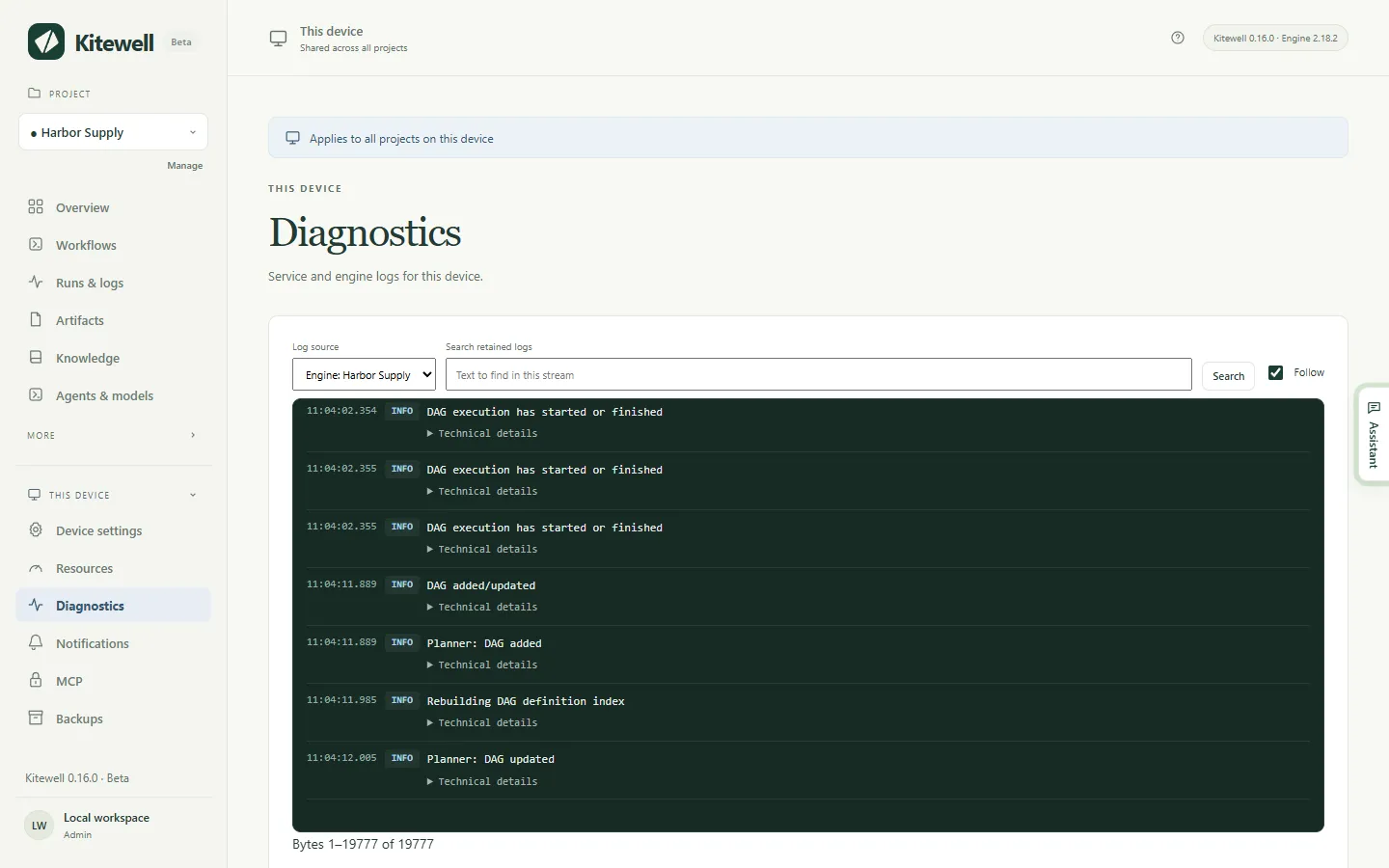
For everything else, open This device → Diagnostics. Log source picks between the service’s own output, its errors, and each project’s engine. You can search what is kept and download it.
Details
Section titled “Details”- Each log file rotates at 10 MiB and keeps three older copies.
- Log files sit in
~/Library/Application Support/Kitewell/logson a Mac and%LOCALAPPDATA%\Kitewell\logson Windows. On Windows,shell.logbeside them records what the app itself did: starts, restarts, and quits. - Kitewell’s own interface listens on
127.0.0.1:19741. Kitewell MCP listens on127.0.0.1:19742by default. Each project’s workflow engine takes a loopback port of its own, chosen when it starts.
Kitewell is developed and supplied by Descarty, Inc. (Tokyo).