MCP and API access
Ask ChatGPT, Claude, or Claude Code to run one of your workflows, read what a run did, or write a new workflow for you. The work still happens on your own computer, in the projects you allow, and you can take the access away again whenever you like.
What you need
Section titled “What you need”- Kitewell open on the computer that holds the workflows, with the computer awake. No call reaches a sleeping computer.
- For an assistant on the same computer, such as Claude Code or Codex, nothing
else. Kitewell already listens at
http://127.0.0.1:19742/mcp. - For ChatGPT or Claude on the web, desktop, or phone, a Dagu Cloud account, with this computer signed in to it. They call from their own clouds, so they reach your computer through Kitewell’s relay rather than that address.
All of it lives on one page: This device → MCP. The badge beside Kitewell MCP reads Listening when the connection is ready, and the Kitewell MCP URL below it is the address to hand a client.
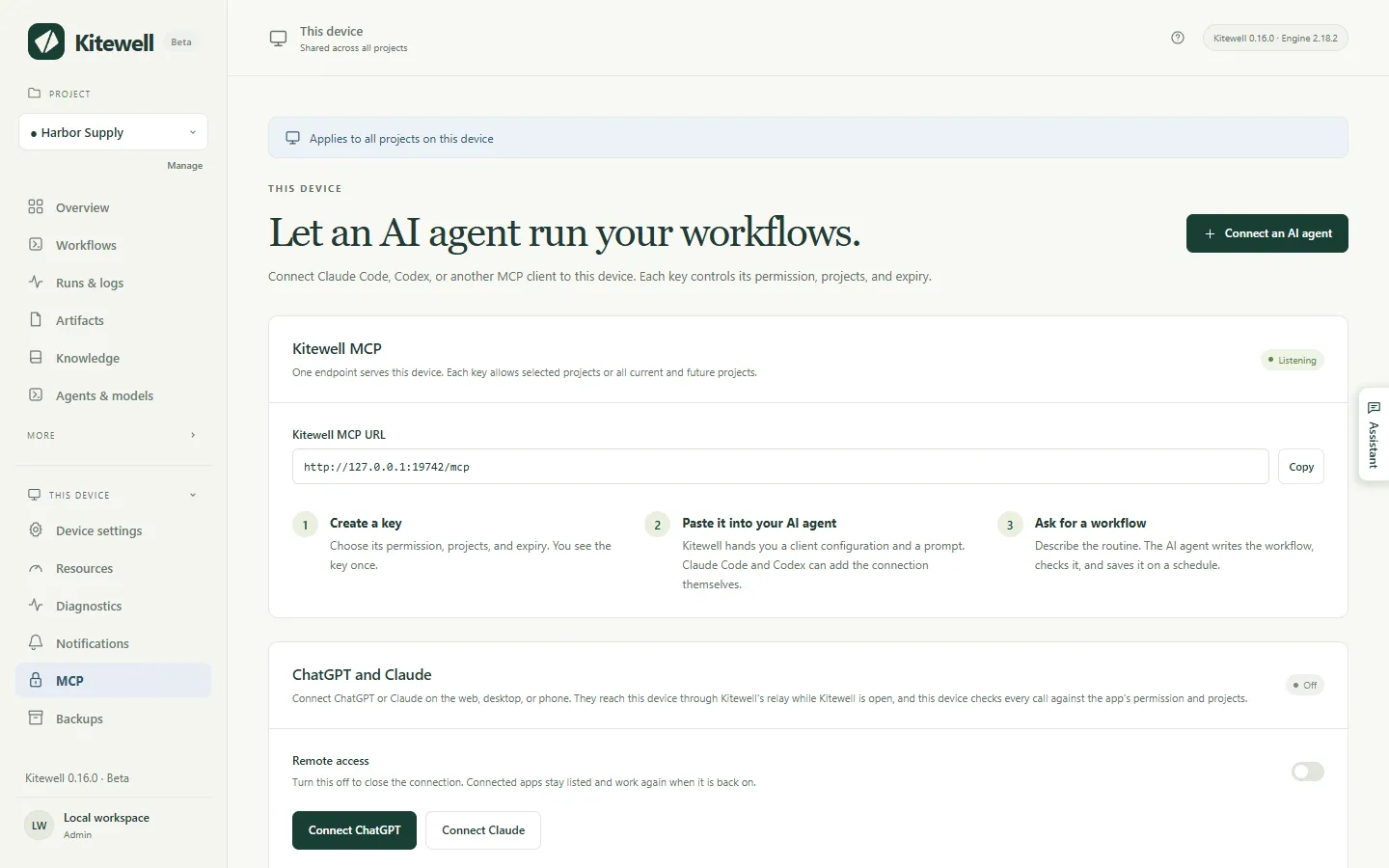
Every plan, and the trial, holds any number of API keys and connected apps. When a plan ends, they stop working with everything else; see When a plan ends.
Connect an assistant on this computer
Section titled “Connect an assistant on this computer”This is the way for Claude Code, Codex, and any other client you run yourself. It uses a key: a long secret the client sends with every call.
- Open This device → MCP and choose Connect an AI agent.
- Fill in Client or device name, such as Claude Code on the work laptop. The name is only so you recognize it later.
- Choose a Permission: Read only, Run workflows, or Edit and run. The next section says what each one allows.
- Choose Projects. Selected projects allows the ones you tick under Allowed projects and nothing else; All current and future projects also covers projects you make later.
- Choose Expires: Never, 30 days, 90 days, or Custom date and time.
- Choose Create API key.
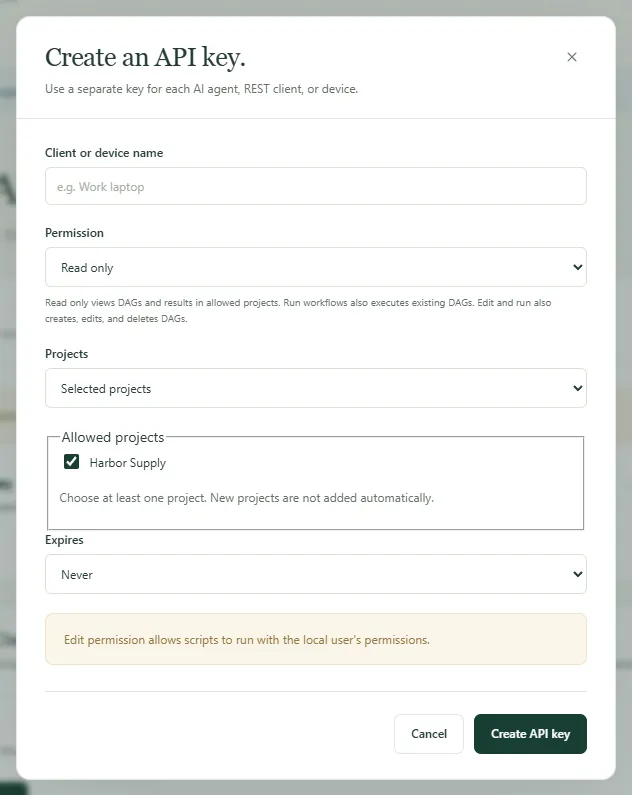
Kitewell then shows the key once, under API key, with three ways to hand it over:
- Kitewell MCP URL is the address the client connects to.
- Kitewell MCP client configuration is the same thing as a block of settings many clients accept as it is.
- Prompt for an AI agent is a request you paste into Claude Code or Codex, which then adds the connection itself. It carries the key, so paste it only into an assistant you trust.
Copy what you need before closing the dialog. The key is never shown again. If you lose it, revoke it and make another.
A client set up by hand needs the URL, Streamable HTTP, and the header
Authorization: Bearer <your key>. The client must support a credential you
type in yourself. ChatGPT and Claude cannot do that; they sign in instead, as
described below.
Back on the page, Things to ask for holds three requests to copy into a connected assistant to try it out: Schedule a command, Schedule an AI agent step, and Look into a failure. Each one names the project you have open, and asks the assistant to check the workflow and leave its schedule off until you have read it.
What each permission allows
Section titled “What each permission allows”| Permission | What the assistant may do |
|---|---|
| Read only | Look at your projects, workflows, runs, their logs, the files a run left behind, and the project’s knowledge. It changes nothing. |
| Run workflows | All of the above, and start, retry, re-run, or cancel a run; approve, reject, send back, or complete a step waiting for a person; answer a website or desktop step that is waiting; and run a sheet’s rows. |
| Edit and run | All of the above, and create, change, or delete workflows, agents and models, servers, queues, workflow defaults, API connections, sheets, and knowledge pages. |
Start with the least that does the job. Read only is enough to ask what failed last night. Run workflows is enough to ask for a run. Only Edit and run lets an assistant write a workflow, and a workflow’s commands run as you do on that computer: they can change files and reach other services. Give Edit and run only to an assistant you would trust to run commands there yourself.
A permission applies inside the allowed projects only. It is not a lock on the rest of the computer.
What a connection can see is whatever is in its projects: the text of workflow commands, the logs of their runs, and the values a run was given. What it cannot see is your secret values, your mailbox passwords, your Dagu Cloud sign-in, other API keys, and anything in a project it was not given. A secret stays on the device, and a workflow reads it by name while it runs.
Connect ChatGPT or Claude
Section titled “Connect ChatGPT or Claude”ChatGPT and Claude reach your computer at https://mcp.kitewell.app/mcp, over
a connection your computer opens. No port on your network is opened, and your
computer checks every call against the permission and projects you approved,
exactly as it does for a key.
- In Kitewell, open This device → MCP and choose Connect ChatGPT or Connect Claude. A computer not yet signed in to Dagu Cloud signs in first, and Remote access turns on.
- Choose the Permission and the Projects, then choose Save and show the steps. Kitewell shows the URL and the steps for that app, and keeps your choice for the next time you connect it.
- Add Kitewell in the app with that URL, as described for Claude or ChatGPT below.
- The app opens Dagu Cloud. Sign in with the account this computer is signed in to.
- The consent page opens with your choice already filled in. Check the computer, the permission, and the projects, change anything you like, then choose Allow.
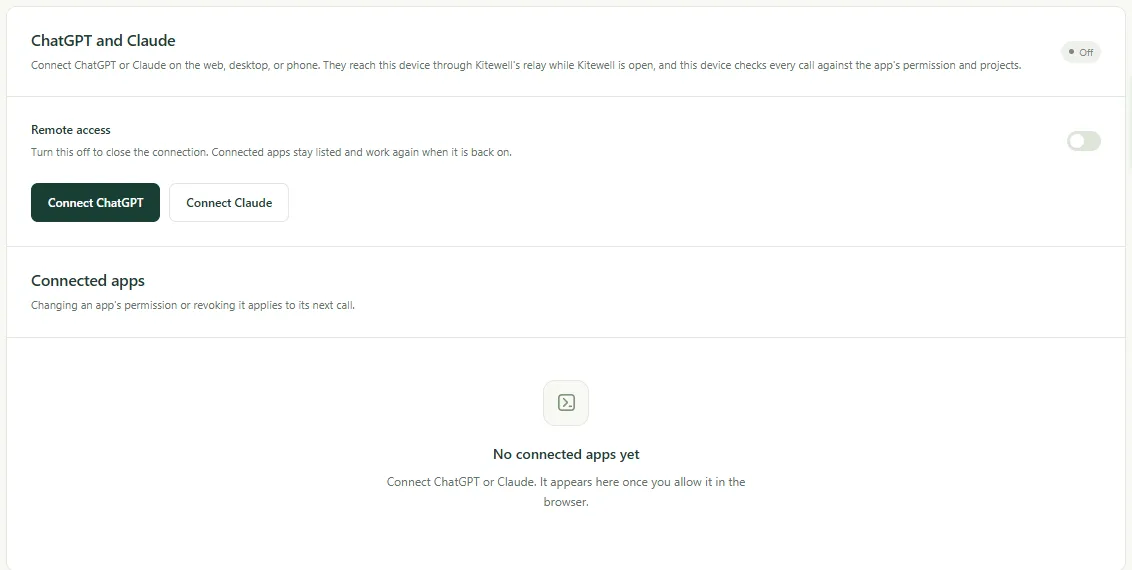
The app then appears under Connected apps, with its Permission, Projects, when it connected, and when it last called.
Claude
Section titled “Claude”- In Claude, open Customize → Connectors, choose + Add, then Add custom connector.
- Name it Kitewell, paste the URL, and choose Continue. Keep the suggested sign-in settings and choose Add.
- Sign in to Dagu Cloud, check the permission and projects, and choose Allow.
On Team and Enterprise plans, an owner adds Kitewell under Organization settings → Connectors first; members then choose Connect on it. Claude’s Free plan allows one custom connector.
ChatGPT
Section titled “ChatGPT”ChatGPT connects on the web only, through developer mode. To give the entry Kitewell’s icon, download the Kitewell icon (PNG) first. It is 256 × 256 px, within ChatGPT’s 10 KB limit.

- In ChatGPT on the web, open Plugins, choose Add, then Create custom MCP server. If it isn’t there, first turn on Developer mode in Settings → Security and login, or on Business, Enterprise, and Edu in Settings → Apps → Advanced settings.
- Name it Kitewell, add the Kitewell icon if you want one, paste the URL under Server URL, keep OAuth, tick I understand and want to continue, and choose Create as a plugin.
- Choose Proceed to Kitewell, sign in to Dagu Cloud, check the permission and projects, and choose Allow.
- Choose Try in chat. In any later chat you can also type @ and pick Kitewell, or choose it from the + tools menu.
Kitewell then appears under Plugins → Personal → Created by you, and its page shows the account it signed in with.
Two limits here are ChatGPT’s own, not Kitewell’s:
- On Plus and Pro, ChatGPT uses only Kitewell’s read-only tools. Starting runs and editing workflows need ChatGPT Business, Enterprise, or Edu.
- On Business, only admins and owners can use developer mode. On Enterprise and Edu, an admin grants it first.
ChatGPT also warns that a custom MCP server is a risk. Kitewell gets only the permission and projects you approve.
If a call says the computer is not reachable
Section titled “If a call says the computer is not reachable”The computer must be on, awake, and running Kitewell. Otherwise the app still lists Kitewell’s tools, but every call answers that Kitewell on that computer is not reachable, and says when it was last seen. Open Kitewell there and ask again. See Troubleshooting if it still fails.
Change or take away access
Section titled “Change or take away access”- A key: Edit in API keys changes its name, permission, projects, or expiry without replacing the secret. Revoke ends it.
- A connected app: Change and Revoke under Connected apps. Revoking the connection in ChatGPT or Claude itself reaches your computer within five minutes.
- ChatGPT and Claude together: turn off Remote access. The connection closes, and connected apps stay listed and work again when it is back on. Keys on this computer are unaffected.
Edits, revocation, and expiry apply to the next call. A run already started carries on. An expired key works again if you extend or remove its expiry.
A workflow’s webhook uses the same relay but has a URL of its own, and keeps working while Remote access is off. See Start a workflow from another service for that.
Tell ChatGPT when something happens
Section titled “Tell ChatGPT when something happens”An app that supports MCP Events can be told instead of asking again and again:
run.finished— a run finished. It can name one run, or the outcomes to report.run.needs_input— a run waits at an approval, a task for a person, or a question.batch.finished— a batch of a sheet’s rows finished.schedule.missed— a scheduled run was missed.
Each app’s subscriptions are listed under it in Connected apps, with when one last delivered, and Remove ends one. Revoking the app ends them all. They pause while Remote access is off, and last up to a week unless the app renews them. Your computer finds the events and sends them, so they arrive only while Kitewell is running. MCP Events are part of Kitewell Personal and Team, like alerts.
Details
Section titled “Details”The tools a connection sees
Section titled “The tools a connection sees”A connection lists only the tools its permission allows, so a read-only connection never sees a tool that writes.
| Tool | Permission | What it does |
|---|---|---|
read |
Read only | Reads projects, workflows and their schema, runs with their logs and artifacts, agents and API models, servers, queues, mailboxes, workflow defaults, imported APIs, batch sheets and their values, and the project’s knowledge. A failed run carries its failure diagnosis when there is one. target: "reference" returns the usage guide. Run workflows adds a preview of which steps a re-run can reuse; Edit and run adds checking a workflow’s YAML without saving it, and opening an Excel workbook on this computer. |
show |
Read only | Draws a workflow’s dependency graph and, with a run, each step’s state. ChatGPT and Claude show it as a view that follows a run in progress; other clients get the steps in order as text. |
execute |
Run workflows | start, retry, rerun, cancel, approve, reject, push_back, complete, answer, restart, resume, run_sheet, read_sheet_values, and cancel_sheet. Edit and run adds refresh_sheet, link_workbook, and unlink_workbook. |
change |
Edit and run | Creates, replaces, and deletes workflows, agents, servers and server groups, queues, workflow defaults, API connections, sheets and the schedule a sheet runs on this device, and knowledge pages. |
preview_api |
Edit and run | Reads an OpenAPI document you give it, or fetches one from a URL, and lists its operations. It saves nothing, but fetching a URL reaches outside your computer. |
A call a permission does not allow, such as one from a tool list a client kept from an earlier permission, is refused and says where in Kitewell to change the permission.
Every replacement or deletion needs the version from the latest read, so a
client never overwrites a change it has not seen. On a conflict, read again,
review, and send it again deliberately.
To follow a run without asking repeatedly, pass wait, up to 60 seconds, to
execute when starting, retrying, or re-running, or to read with
target: "run". The call answers as soon as the run ends or stops at a step
waiting for a person. If the time runs out first, it answers with the run as
it stands.
Writing results into a linked workbook, and undoing such a write, are open to no connection at all. A person does both in the app.
Choosing the project
Section titled “Choosing the project”read with target: "projects" lists only the projects a connection may
reach, and needs no project of its own. Every other call names its project
with projectId, or ?projectId=<id> on a REST route. A connection that
reaches exactly one project may leave it out; one that reaches several must
name one. Ask for the project list first, then pass the ID whose name matches
the request.
Agents, servers, queues, and workflow defaults belong to a project, so the same key changes different ones depending on the project it names.
Imported APIs over MCP
Section titled “Imported APIs over MCP”An assistant with Edit and run can import an OpenAPI document and build workflows from its operations:
- Preview with
preview_apiand eitherspec, the document as JSON or YAML text, orurl. Nothing is saved and no operation is called. - Save with
change,type: "upsert_api", anid, and anapidefinition. Giveapi.spec, or leave it out to fetchapi.sourceUrlonce. Setapi.auth.typetonone,bearer,apiKey, orbasic, and name an existing project secret withapi.auth.secretRef. Secret values are created and replaced in the app, never over MCP. - Find operations with
read:target: "apis"lists connections,target: "api_operations"searches one byidand an optionalquery, andtarget: "api_operation"withidandoperationIdreturns its inputs, its responses, and a starting workflow step. - Add
api.requeststeps, then check, save, and run the workflow with the usual tools. The returned step is a template: review its examples and replace the placeholders before running it.
upsert_api replaces the whole connection, so read target: "api" first,
keep the fields you still want, and pass its definitionVersion as
version. change with type: "delete_api" removes a connection only when
no saved workflow uses it. See Import an API for what the
importer accepts.
REST for scripts
Section titled “REST for scripts”The same keys work for a plain HTTP interface, for scripts and other
integrations. Its base address is the MCP URL’s origin plus /api. Every
request needs Authorization: Bearer <your key>, even on this computer; the
browser’s own sign-in is not a key.
GET /api/jobs HTTP/1.1Host: your-hostAuthorization: Bearer <Kitewell API key>| Route | Least permission |
|---|---|
GET /api/projects, /api/jobs, /api/runs, /api/queues |
Read only |
GET /api/runs/{jobId}/{id}, /api/jobs/{id}/graph |
Read only |
GET /api/runs/{jobId}/{id}/logs and /logs/download |
Read only |
GET /api/dags/schema, /api/harnesses, /api/data/usage |
Read only |
POST /api/jobs/{id}/run |
Run workflows |
POST /api/runs/{jobId}/{id}/resume |
Run workflows |
POST /api/runs/{jobId}/{id}/approvals/{stepId}/approve, /reject, /push-back |
Run workflows |
POST /api/runs/{jobId}/{id}/human-tasks/{stepId}/complete |
Run workflows |
POST /api/jobs, PUT and DELETE /api/jobs/{id} |
Edit and run |
POST /api/jobs/{id}/pause, POST /api/dags/validate |
Edit and run |
POST /api/runs/delete, DELETE /api/run-history/{jobId} |
Edit and run |
Log reads accept stepId, stream=stdout, stderr or run, tail=500 or
offset and limit up to 500 lines, and query=<text> to search. Run
requests accept a body such as {"params":{"region":"west"}}.
REST covers workflows and batch sheets. Device settings, secrets, API-key
management, the Dagu Cloud account, backups, and engine controls stay in the
app and are not exposed. Imported APIs are managed in the app or through the
MCP change tool.
To run a workflow as one task in another system’s flow, passing values in and taking the result back, see Call Kitewell from another system.
Another computer’s client
Section titled “Another computer’s client”The listener accepts local connections only, at 127.0.0.1:19742. ChatGPT and
Claude come through the relay instead and need none of what follows.
A client on another computer needs an address it can reach over HTTPS, which
you set up and operate. Under Kitewell MCP connection, keep
Enable Kitewell MCP on, open TLS and remote connections, and fill in
Public Kitewell MCP URL, ending in /mcp. Then either keep
Listen address at 127.0.0.1:19742 and point your own HTTPS proxy at it,
forwarding both /mcp and /api/ with the Authorization header, or set the
address to 0.0.0.0:19742 and give absolute paths for Certificate file
and Private key file. Choose Save connection.
An address other computers can reach makes the firewall ask whether Kitewell may accept connections, and a refusal there leaves every client waiting. Kitewell does not set up DNS, certificates, or router forwarding, and does not supply a computer to run your workflows on. Never publish an unprotected HTTP listener to the internet.
If the badge reads Unavailable and the page says another program is using port 19742, it is usually a second copy of Kitewell, such as a development build running beside the installed app. Quit that program, then restart Kitewell.
Keys are stored as hashes, never in full. Restoring a backup keeps this computer’s keys: review them, and revoke any that should no longer have access. Contact support if a client’s credential settings are unclear.
Kitewell is developed and supplied by Descarty, Inc. (Tokyo).