AI agents and models
Kitewell’s AI features need a model: one you add with a provider’s API key, a coding tool already installed on this computer, or Kitewell’s included model on a computer signed in to Dagu Cloud.
With one, Kitewell builds and fixes workflows with you in its chat, a failed run can explain itself, a sheet can read a value out of each run, and a workflow can ask a model a question in the middle of its work.
What you need
Section titled “What you need”- A provider’s API key, for anything that calls a model over the internet. If the project already has one, Agents & models in the sidebar lists it. Kitewell’s included model needs none.
- For a command-line coding agent, the tool installed on this computer and signed in there. Kitewell starts it; it never signs in for you.
- The Agents & models page is for administrators and editors. What the provider charges for a request is yours to pay.
Add a model the project can use
Section titled “Add a model the project can use”- Choose Agents & models in the sidebar, then Add API model.
- Pick the Provider: Anthropic, OpenAI, Google Gemini, OpenRouter, Z.ai, OpenCode Zen, or Local server (Ollama, vLLM). A local server needs no key.
- Under API key, choose the project secret that holds the key — a secret is a password or key stored so it never shows in a log. An administrator can also choose New key… and Paste the API key here, which saves it as a secret in one step. The key is bound to each run that uses this model; the workflow itself never contains it.
- Enter the Model ID. For OpenRouter, OpenCode Zen and a running local server this lists every model the provider offers, so you can type part of a name to search. For the others it suggests, and any ID your provider accepts works.
- Give it a name of your own — “Fast summary”, “Invoice reader” — and choose Test model. Before anything is sent, the panel shows the exact prompt, where it goes, which key it uses, and what is left behind.
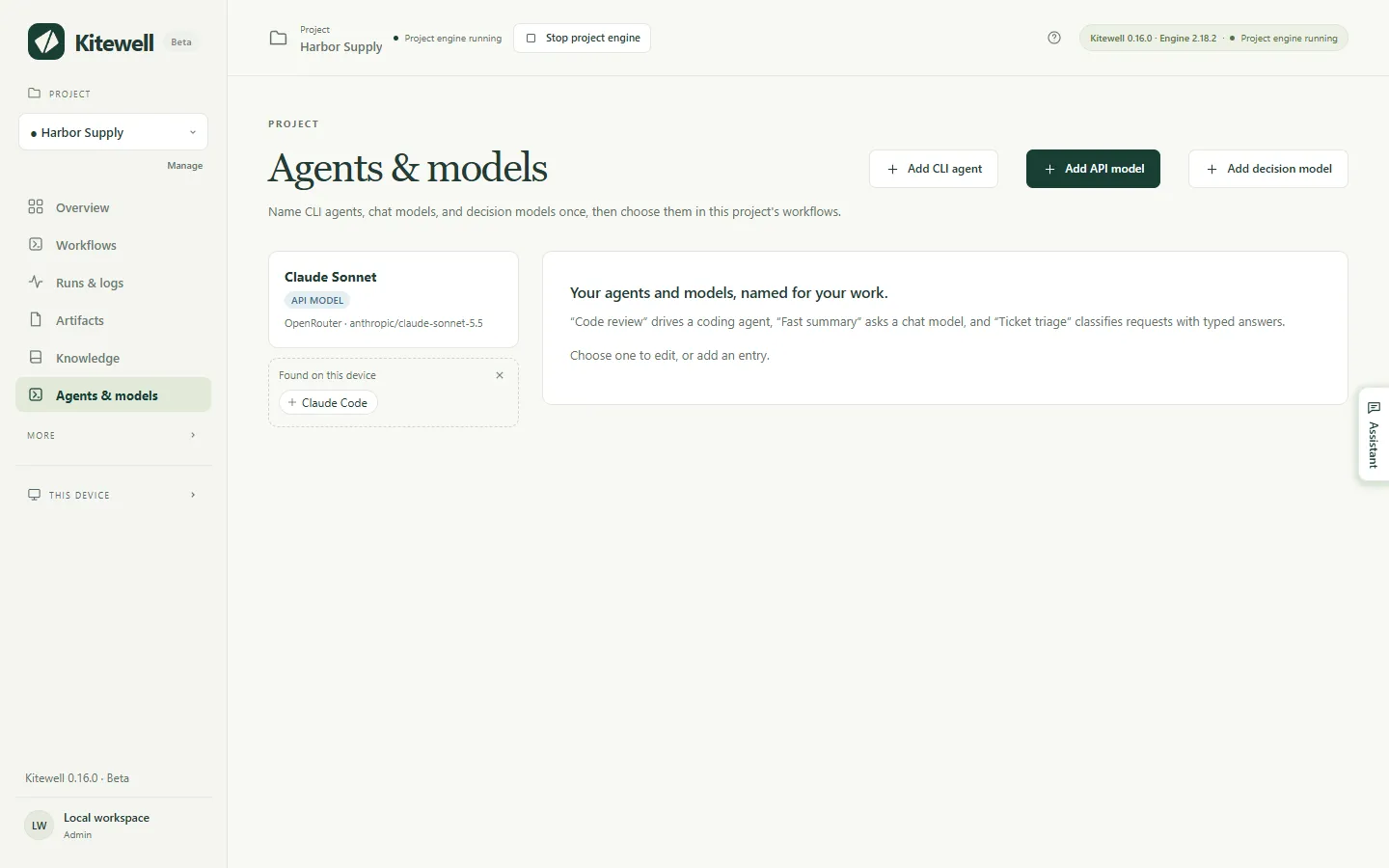
The page holds three kinds of entry, chosen with Kind:
- API model asks a provider’s model directly and returns its answer. It fills Ask a model tasks, the assistant, failure diagnosis, a sheet’s result columns, and the Automate a website and Automate a desktop app tasks.
- Decision model classifies, scores, and answers yes-or-no questions, with a probability on each answer. Add decision model offers OpenRouter or TypeSafe. A Make an AI decision task uses it to sort or score something so a later step can branch on the answer, and a sheet uses it to judge yes-or-no, choice, and level columns.
- CLI agent drives a coding agent installed on this device.
An entry can fall back to another when it fails: its card then reads “Falls back to” and names them. Each attempt is a fresh request, billed again.
Use Kitewell’s included model
Section titled “Use Kitewell’s included model”On a computer signed in to Dagu Cloud, Agents & models lists Kitewell (included). It needs no API key: each request goes through Dagu Cloud to OpenRouter and is paid from the workspace’s Dagu Cloud credits.
- Choose it as the Model of an Ask a model or Automate a website
task, a sheet’s result column, or failure diagnosis. In a workflow’s YAML it
is
kitewell-agent-included. - Automate a desktop app reads the screen with it on every plan, unless the project chooses another model under Project settings → Screen steps. For screenshots Dagu Cloud serves a vision model built for computer use. Make an AI decision cannot use it.
- Kitewell’s chat answers with it until an administrator sets up a model under Device settings → Kitewell’s AI model.
The trial comes with 100 credits, once. Kitewell Personal and Team get 500 credits a month for each computer the plan pays for, shared by the workspace and renewed on the first of each month (UTC). The assistant’s web searches spend the same credits.
On Personal and Team, packs of 1,000 credits cost $12 in Dagu Console. A pack’s credits never expire and are spent once the month’s credits run out.
An administrator sees what is left under Dagu Cloud account in Device settings. When the credits run out, the included model is refused until they are renewed or you buy a pack, or during the trial until you subscribe. A model of your own keeps working.
Dagu Cloud asks OpenRouter to route these requests only to providers that neither store nor train on them. It keeps no prompt text, only the workspace, the device, the model, and the credits used.
Use a coding agent on this computer
Section titled “Use a coding agent on this computer”Install the tool and sign in to it first. Kitewell knows 15 tools — Aider, Amp, Claude Code, Cline, Codex, Cursor, DeepSeek, Droid, Gemini, GitHub Copilot, Goose, Kiro, OpenCode, Pi, and Qwen — and runs anything else as a Custom command. Tools it finds on this computer that no agent uses yet appear under Found on this device, one click from their own entry.
- Choose Add CLI agent and pick the Harness. The list says which are installed on this device and which are not.
- For Claude Code, Codex and OpenCode, Load models fills in what that tool offers. The others take a model name you type.
- Choose Test agent. The panel shows the prompt it will send, the folder it will work in — a new empty temporary folder it removes afterwards — and anything it would bypass, before it runs.
- In a workflow, add an Ask an AI agent task, choose the Agent, and write Prompt · describe the task. Under Agent settings and context, set the Project folder it works in.
Kitewell runs the tool with the sign-in it already has on this computer. For tools that take one, such as Claude Code, Codex, and GitHub Copilot, Reasoning effort on the agent sets how much the tool reasons, and a step can override it.
If it fails on the agent lists up to three other CLI agents, tried in order when this one’s tool exits with an error, such as a rate limit, a missing sign-in, or a crash. A weak answer is not a failure. Each attempt runs the prompt from the start, so the work is paid for again.
When a reviewer sends an agent step’s work back, the agent runs again with the reviewer’s feedback added to its prompt. See Stop and ask a person.
A coding agent is a program running on this computer as you, with whatever access you gave the tool itself. It can read and change files and run commands. Bypass permission prompts on the agent turns off the tool’s own confirmations, and an agent with any set carries a Bypasses approvals mark on its card. Never hand such an agent text that arrived from outside — the workflow editor warns you when an email’s text would reach one, because whoever sent the email could then instruct it. Use Ask a model for that, which cannot run anything.
The assistant
Section titled “The assistant”Kitewell has one chat for this computer, across every project. Ask it to build or fix a workflow, run something, or find out why a run failed. Open it with Ask Kitewell at the top of the Kitewell window, or press ⌘J on a Mac, Ctrl+J on Windows. It is for administrators and editors.
The chat opens docked on the right of the Kitewell window. Open in its own window moves it out, Keep in front keeps that window above the others, and Dock in the Kitewell window brings it back. On a Mac, Open Chat in the menu bar menu shows it; on Windows, a click on the tray icon shows or hides it.
It answers with Kitewell’s AI model, set once in Device settings for every project. Until an administrator sets one, a computer signed in to Dagu Cloud uses Kitewell’s included model; otherwise an administrator can set one up from the chat itself.
Work that takes more than a quick answer goes into a thread, tied to the workflow or run it is about. Kitewell starts one when a request turns into work, and Reply in a thread starts one from any message. Back to the main conversation returns, Mark done closes a thread, and Reopen opens it again. Several threads can work at once.
You can keep typing while Kitewell works: it reads a new message at its next step, and Cut in now stops the work to answer that message first. When the Kitewell window is open, the chat knows what it shows, so “this workflow” means the one in the editor, unsaved edits included.
Nothing Kitewell proposes is saved, and nothing it does runs, until you press the button on its card.
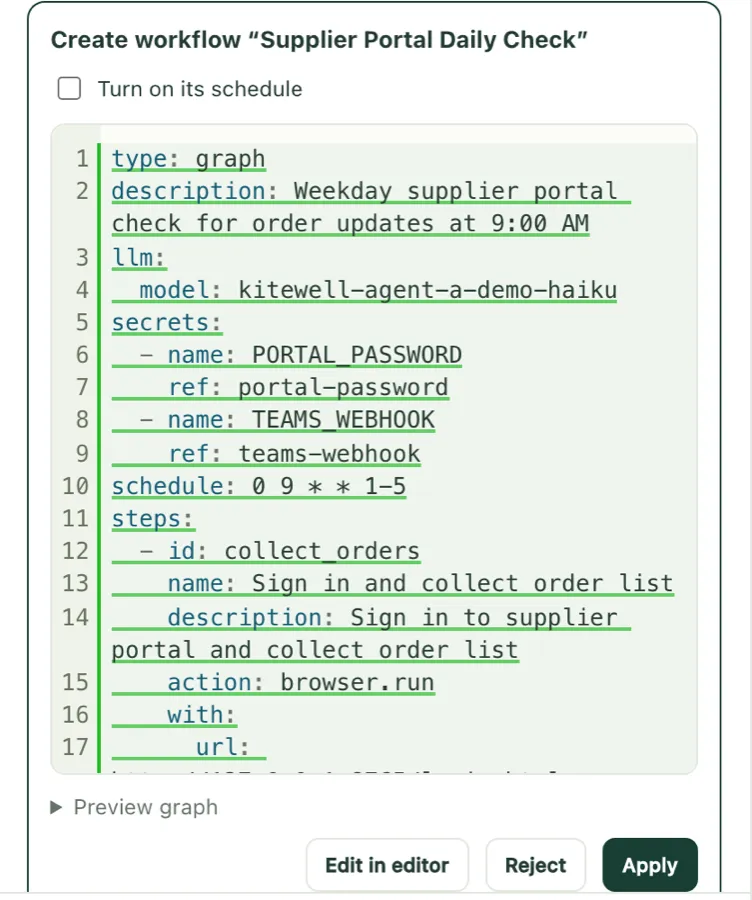
- A new or changed workflow comes as a card with its diagram and Details. Choose Apply, or Reject, which asks why. A schedule is offered on, with its next runs; untick Turn on its schedule to save it paused. After applying, Open opens the workflow and Run now runs it, and a change to an existing workflow can be undone with Undo.
- It proposes rows and columns for a sheet as a card. Applying can also start the runs it touched, and then it cannot be undone.
- It can run a workflow, approve, reject, or send back a waiting step, stop a run, and pause or resume a schedule. Each is a card with the workflow’s diagram that acts only when you press its button, such as Run or Approve; Not now declines.
- It can run a draft for real to see whether it works. The first time in a thread it asks, with Allow trial runs. A trial runs commands, browser steps, reads, and model calls with the project’s secrets. Anything that would send or change something elsewhere — a POST, an email, a command on another machine — only reports what it would have sent.
- After you choose Allow, it can work a site in its own browser to learn how a workflow should use it; you watch in the chat and can Take over at any time. It can read a public web page, though not an address on this device or its own network, and on a computer signed in to Dagu Cloud it can search the web.
- It can put up to six short questions to you as one card, answered with Send answers or passed with Skip. It can ask for a secret by name: you type the value into its card and choose Save, and the assistant never sees it. Only an administrator can add one this way, or list secret names.
- It reads the project’s knowledge every message and writes down what it learns as you work. When you say how you want it to work, it remembers that at once, with Undo. Once the conversation has read a web page or a run’s output, it asks first.
Kitewell also posts cards of its own, on every plan. A run waiting for you gets one, with Approve, Reject, or an answer right on the card. What the notification settings send to this device gets one too: a failing workflow, with Retry; a schedule that did not start, with Run now; and a line for a run that succeeded, was cancelled, or is running long, or a sheet that finished. Each also shows as a notification unless the chat is in front.
Ask Kitewell on a failed run asks it to find out why and propose a fix.
The conversation stays on this computer and is left out of backups. Delete removes one message and Delete thread a whole thread; Delete every project’s conversation, under Device settings → Kitewell’s AI model, removes everything. Workflows and other changes Kitewell saved stay.
Why a run failed
Section titled “Why a run failed”Kitewell can read a failed run and say what to do about it.
- Open Project settings → Failure diagnosis and turn on Diagnose failed runs automatically.
- Choose the Model it should use.
- Under Workflows, leave each workflow on Project default, or set it to On or Off on its own. Choose Save diagnosis settings.
Only the first failure of a run of failures is diagnosed, not every failed run after it; a success ends the streak. The answer appears on the failed run as one of Try again, Needs you, Workflow change, or Unclear, with the cause and a next step. Diagnose asks for one on any failed run, and Diagnose again asks for a fresh answer.
The model is sent the failed steps’ results, the tail of their logs, what a browser, desktop or agent step was doing when it stopped, the failures of a child run, and the definition the run actually used. It is given no tools, so nothing a run printed can act. Diagnoses stay on this device and are deleted with their runs.
What leaves this computer
Section titled “What leaves this computer”Prompts and their context go to the provider or tool you chose, and that provider’s billing, retention and privacy rules then apply. A workspace that lives on your computer does not mean every task stays on it.
- Before running, Tools → Review AI prompts in the workflow editor shows the instructions each AI task will receive. Runtime values are filled in when the run starts.
- After running, Runs & logs shows the prompt the run recorded and what came back.
- The chat sends the recent conversation, what the Kitewell window shows, including the workflow open in the editor, the project’s workflows, models and knowledge, and what each tool it used returned. Secret values are never sent.
- When the chat’s model is an OpenRouter model on OpenRouter’s own address, its requests ask OpenRouter to route them only to providers that neither store nor train on what they receive.
- Kitewell’s included model sends each request to Dagu Cloud, which passes it to OpenRouter.
See What leaves your computer for the whole picture.
Kitewell is developed and supplied by Descarty, Inc. (Tokyo).