Schedules and background operation
Kitewell can start a workflow for you: every weekday at nine, once an hour, or when another service sends it a request. The work happens on this computer. On Windows with Kitewell Team it happens whether or not you are signed in; on a Mac, and on Kitewell Personal, it happens while you are.
Set a schedule
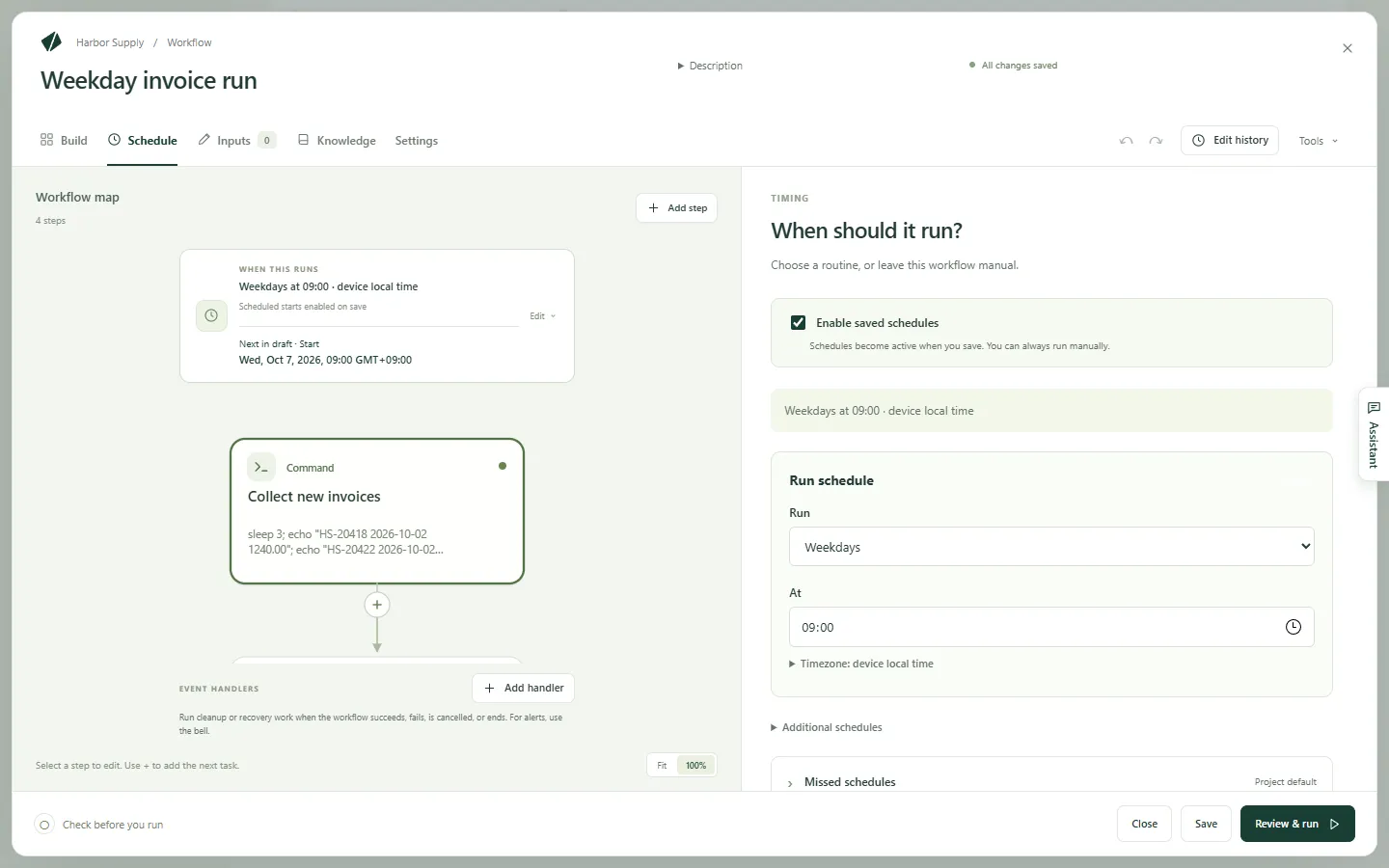
Section titled “Set a schedule”- Open the workflow and choose Schedule.
- Make sure Enable saved schedules is ticked.
- Under Run, choose how often: Every day, Weekdays, Every week, Every hour, or Custom schedule.
- Set the time. A custom schedule takes a cron expression of five fields.
- Open Timezone if the time belongs to a particular place. Left alone, the schedule follows this computer’s clock, daylight saving included.
- Choose Save.
Next 5 scheduled events below the form shows when the workflow would actually run. Under it, a line says what the schedule comes to on this computer: Will run, signed in or not, Runs only while you’re signed in, or Won’t run, with the reason and the button that fixes it.
Test the schedule now runs the workflow once, exactly as the schedule would, and opens the run. Use it before you trust a schedule to the night.
Check that tonight’s runs will happen
Section titled “Check that tonight’s runs will happen”The Workflows list shows the same verdict under each workflow’s next start, and a banner at the top of the page says in one line what stands in the way of tonight’s runs, with the fix beside it. When nothing stands in the way, there is no banner.
What the verdict looks at: whether the computer will be signed in, the project and its engine, a paused or held workflow, a step that needs the screen, a browser sign-in that needs your password, and a schedule written in another timezone.
Run with nobody signed in (Windows)
Section titled “Run with nobody signed in (Windows)”Running with nobody signed in needs Kitewell Team, or the trial. On Kitewell Personal, schedules run only while you are signed in.
Turn on Device settings → Run when nobody is signed in. One administrator prompt, with no password, sets up a small Windows service, Kitewell sign-in, that starts the engine when the PC starts and runs your schedules as you, signed in or not.
The card there shows the run account, the sign-in, the engine, the next scheduled run, and sleep, and turns the service off again.
Two kinds of step still need you at the PC: a desktop step, and a website step that shows its browser window. Their workflows say Runs only while you’re signed in. Everything else runs either way.
Use my password… on the card is optional. Add it when a workflow needs a network share, or a website sign-in that Windows protects with your password. Forget password takes it back out. A Microsoft or work account may need the password for the sign-in itself; the card says so and asks.
Keep Kitewell running
Section titled “Keep Kitewell running”Closing the window stops nothing: Kitewell stays in the menu bar on a Mac and in the notification area on Windows. Open at Login on a Mac and Start at login on Windows open it when you sign in.
Quit Kitewell stops the engines on a Mac; on Windows with the service on, the engine keeps running without the window.
Sleep, and the runs that were missed
Section titled “Sleep, and the runs that were missed”On Windows with the service on, the PC stays awake around a scheduled run and wakes from sleep for the next one, when the power plan allows wake timers. On a Mac, a sleeping computer runs nothing; Device settings → Sleep protection keeps it awake while work is running.
A scheduled time that went by without a run appears in Runs & logs as a Missed row, with why: the device was asleep, Kitewell wasn’t running, the project engine wasn’t running, or no run started. The row says whether catch-up will make up for it, and links to the run that did.
Catch-up runs the starts that were missed once the computer is back, looking back 24 hours by default. Change it under Schedule → Missed schedules.
If something goes wrong
Section titled “If something goes wrong”- The time came and nothing ran. Open Runs & logs and look for a Missed row: it names the reason. Then check the verdict under the workflow’s next start.
- It ran at the wrong time. Check Timezone on the schedule and the times under Next 5 scheduled events.
- Several runs started at once after the computer woke. That is catch-up. Set Missed schedule policy to Run only the latest missed occurrence, or turn catch-up Off.
- The verdict says Won’t run. Press the button beside it. It turns the service on, asks for a password, starts the engine, or opens the editor, whichever the reason calls for.
More in Troubleshooting.
More about schedules
Section titled “More about schedules”Schedule reference covers the rest: what each verdict means, the Windows service and what it does and does not do, catch-up settings and limits, queues, webhooks, and the menu items.
Kitewell is developed and supplied by Descarty, Inc. (Tokyo).