Backups and recovery
A snapshot puts every project on this device — workflows, run history, settings, sheets, and knowledge — into one file you can keep somewhere safe and put back later. Kitewell can take one every night on its own. It also keeps the earlier versions of anything you edit, so a change to one workflow can be undone without restoring the lot.
What you need
Section titled “What you need”Administrator access on this device. Backups appears under This device in the sidebar.
Make a backup now
Section titled “Make a backup now”- Open This device → Backups and choose Create backup.
- Wait a moment. Each project’s engine stops while the snapshot is taken and starts again afterwards.
- The snapshot appears under Saved snapshots with its Created time and Size.
- Choose Download backup, the arrow beside the snapshot, and save the file somewhere you control.
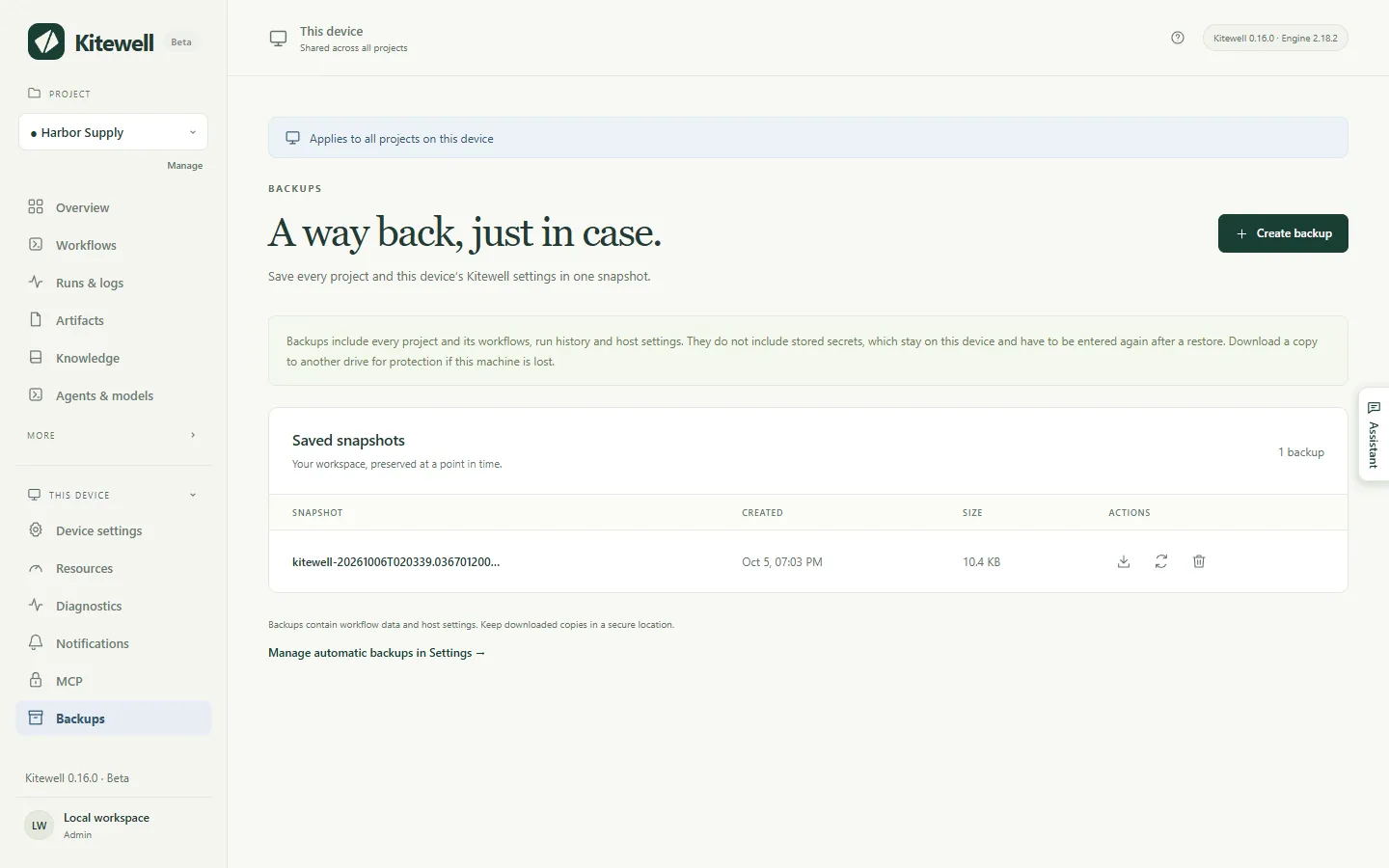
A snapshot that only ever sits on this device is useful for undoing a change. It is no help if the device itself is lost or stolen, so keep a downloaded copy on another drive or in storage your team protects.
Back up every day
Section titled “Back up every day”Turn on Device settings → Automatic backups → Daily backups and choose the Backup hour. Kitewell then takes one snapshot a day, soon after that hour, in this device’s own time zone. If the device is asleep at the time, the snapshot is taken after it wakes.
Kitewell keeps the 10 newest automatic snapshots and removes older ones. A snapshot you asked for yourself, and the safety snapshot taken before a restore, stay until you delete them.
Two things stop an automatic snapshot. A workflow that is running, queued, or waiting — including one waiting for an approval — holds it up, and Kitewell tries again every 15 minutes. And a device with every project stopped takes none at all, because nothing is running to protect.
Undo one change instead
Section titled “Undo one change instead”Every time you save a workflow, a sheet, or a project setting, Kitewell keeps the version you replaced. Choose Edit history on the Workflows page, in Project settings, or in the workflow editor’s toolbar.
- Pick a version in the list. Each one is labelled with the time you saved over it.
- Read the comparison. Earlier version is what you are looking at, Current version is what is saved now.
- Choose Restore this version, then Restore to confirm.
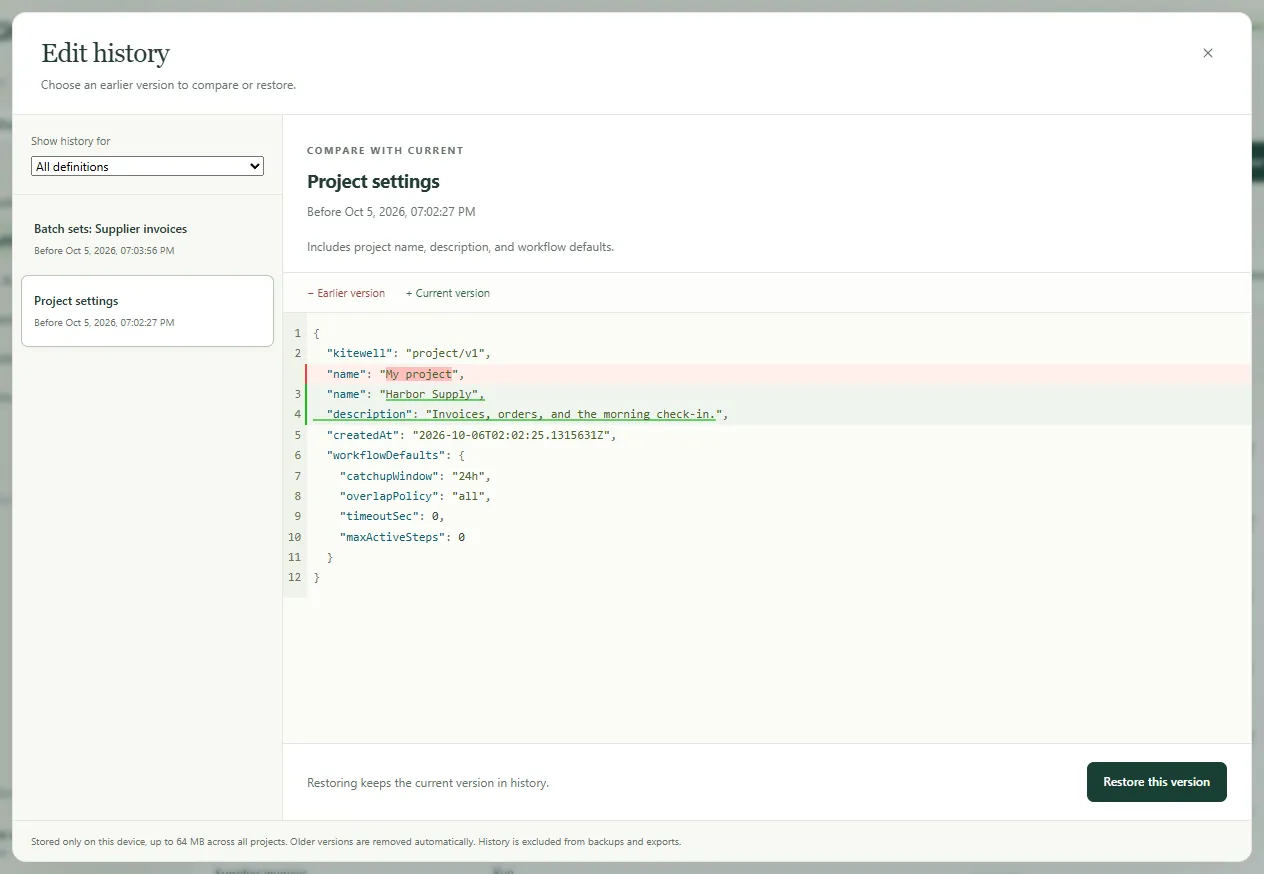
Restoring keeps the current version in history, so you can go back again. Show history for narrows the list to one workflow or setting. A workflow you deleted is still in here: restoring it brings it back with its schedules paused.
This history lives only on this device. It is not in a snapshot and not in a project export, and restoring a snapshot clears it.
Restore everything from a snapshot
Section titled “Restore everything from a snapshot”- Let the work in progress finish. A restore is refused while a workflow is running, queued, or waiting.
- Open This device → Backups and choose Restore backup, the circling arrows beside the snapshot.
- Read the warning and confirm with Restore backup. Kitewell saves a safety snapshot first, replaces every project and this device’s settings, and reloads.
- Read what the restore reports and work through it.
The restore names, for each project, the secrets to enter again, the mailboxes to connect again, and the website steps that will sign in again on their next run. Container registry sign-ins are cleared, so enter those again too.
This device keeps what is its own: its sign-in, its API keys, and which projects were stopped. No snapshot can lock you out, and no snapshot carries someone else’s keys onto your device.
A restore never writes to Dagu Cloud. A synced project comes back as the snapshot had it, and its next update takes Dagu Cloud’s copy.
What a snapshot holds
Section titled “What a snapshot holds”| In the snapshot | Left out |
|---|---|
| Device settings, alert channels and rules | Secret values and the keys that decipher them |
| Projects, workflow definitions, workflow defaults | Alert channel passwords, webhook addresses and keys |
| Imported OpenAPI files and API connection settings | Mailbox sign-ins |
| Batch sheets, releases, knowledge pages | Saved website sign-ins and replay caches |
| Secret names and descriptions | What desktop steps recorded of the screen |
| Run history and artifacts | Run output logs |
| Assistant conversations and failure diagnoses | Edit history, alert history |
| Copies of a linked Excel file kept for Undo | This device’s sign-in and API keys |
| What this device decided per project: approved SSH hosts, key paths, which workflows run here | The Dagu Cloud connection, a file at the top of the data folder |
What is left out is left out on purpose. A snapshot carrying both a secret and the key that deciphers it would hold that secret in the open, so a restored device asks for credentials again instead.
The file is not encrypted, and some of what it holds is your own business data: a run’s output and artifacts, what the assistant discussed, and up to ten copies of each Excel file a sheet writes back to. A credential typed straight into a workflow, an OpenAPI file, or a source URL is in there as written. Treat a downloaded snapshot as sensitive, and encrypt it yourself before putting it in shared storage.
Kitewell backs up only what it keeps itself. Scripts your steps call, the files they read, Docker volumes, mounted folders, and the services your workflows reach are not in it. Back those up the way you back up the rest of the computer.
If something goes wrong
Section titled “If something goes wrong”- “has a workflow running, queued, or waiting”. Something is still going. Let it finish, or answer the approval it is waiting on, then try again.
- The backup fails on size. A snapshot holds at most 2 GiB of data and 100,000 files. Delete run history you no longer need first.
- The restore says the backup uses a layout this version does not read. The snapshot came from a different Kitewell. Install the version that wrote it, or restore a newer snapshot.
- A workflow comes back held after a restore. The definition is kept and reported so you can correct it in place; the other workflows run.
See Troubleshooting for anything else.
Keep an eye on space
Section titled “Keep an eye on space”Project settings → Storage shows how much the project uses and how much the disk has left, and warns you when it runs low. It lists:
- each workflow’s run history, with Delete history…
- saved website sign-ins, with Forget sign-in…
- the replay caches website and desktop steps keep, with Clear
- everything else the project holds, as one figure
Once a day, at the Backup hour, Kitewell clears out run history older than Device settings → Run history retention, the finished sheet launches that went with it, and files from runs that no longer exist. Lowering the retention setting clears the old history at once rather than waiting for the night.
Run logs have no size limit of their own. One noisy run can still fill a disk before its history is due to go.
Where the data lives
Section titled “Where the data lives”macOS: ~/Library/Application Support/KitewellWindows: %LOCALAPPDATA%\Kitewelldata holds the projects and settings, backups the snapshots, runtime the
downloaded engine versions, and logs what the service wrote. Quit Kitewell
before moving any of it by hand, and never delete the folder to fix an
installation problem without a snapshot you have downloaded.
Details
Section titled “Details”- Snapshots are
kitewell-<timestamp>.tar.gzunderbackups, gzipped tar, owner-only, with-autoin the name for the ones Kitewell took itself. Pruning counts only those. - The limit is 2 GiB of uncompressed data and 100,000 files per archive.
- Edit history is capped at 64 MB across all projects, 1,000 versions in all,
and 100 versions per workflow or setting; the oldest go first. It lives in
data/history/<project>. - A backup leaves out
credentials.json,state.json,mail.key,data/history, each project’smail.json, everylogsdirectory, and theauth,secrets,browser, andcomputerdirectories under each project’s engine. The three device files are copied through a restore rather than taken from the archive. - The daily cleanup also removes failure diagnoses and asks the engine to
reclaim artifacts no run claims any more. A workflow can keep its own
history with
hist_retention_daysorhist_retention_runsin its YAML, which wins over the device setting. The cleanup is skipped while an engine update is quarantined. - A restore replaces the running MCP listener with the settings from the archive. Runs already in flight are neither waited for nor ended.
Kitewell is developed and supplied by Descarty, Inc. (Tokyo).