Share workflows with your team
Build a routine once and hand the whole project to a colleague, or to your own second computer. They get the workflows, the names of the settings those workflows need, and nothing of yours that should stay put: no passwords, no run history, no mailbox sign-ins.
To keep every copy the same as the workflows change, sync the project with Dagu Cloud instead. An export is a snapshot, and it stops being current the moment you edit something.
Send a project to another computer
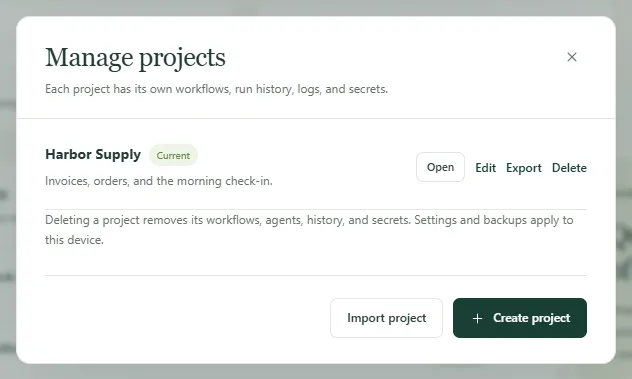
Section titled “Send a project to another computer”- Open the project selector at the top of the sidebar and choose Manage.
- In Manage projects, choose Export beside the project. Kitewell
downloads one file:
kitewell-project-harbor-supply-20261005T091500.tgz, with the project’s name and the time in it. - Send the file however your team sends files.
- On the receiving computer, open Manage projects, choose Import project, and pick the file.
- Kitewell says “This device has to supply the rest” and lists what is missing: each secret that needs a value, a mailbox to connect, a machine whose host key nobody has approved yet, a custom command, and the workflows that arrived paused. Choose Open and work down that list.
Importing always makes a new project; it never replaces one you have. If a project of that name is already there, Kitewell asks for another name.
The new project counts against that computer’s limit: up to five projects on Kitewell Personal, and up to 15 on Team and during the trial. A project with more than 100 workflows cannot be imported at all. The file itself may be up to 16 MiB.
What travels, and what does not
Section titled “What travels, and what does not”The file holds the project as a set of plain documents:
- workflow definitions, with their schedules;
- named agents and models;
- imported OpenAPI documents and their API connection settings;
- server addresses and server groups, queues, and image registries;
- batch sheets;
- the names and descriptions of secrets, but never their values;
- the project’s workflow defaults and its knowledge;
- which release the project last took.
The receiving computer supplies the rest itself:
- secret values and registry passwords;
- SSH private key paths and approved host keys;
- custom agent commands, installed tools, and agent sign-ins;
- mailbox connections;
- external scripts, input files, and data mounted into Docker.
Left out entirely: run history, logs, artifacts, releases, the local edit history, project alert rules, failure-diagnosis settings, website sign-ins, device settings, and this computer’s API keys.
Decide which computer runs the schedules
Section titled “Decide which computer runs the schedules”Imported workflows arrive paused, on purpose. Run one by hand first, check what it did, then turn on the schedules this computer should keep.
Two computers that both enable the same schedule both run it, independently. For a routine that must happen once, pick one computer to run it and leave the other copies paused. That computer has to be on and awake at the time. See Schedules and background operation.
Let a teammate drive the workflows on one computer
Section titled “Let a teammate drive the workflows on one computer”Sometimes the work should stay on one machine and your colleagues just need to start it, watch it, or change it. Give each of them a key instead of a copy of the project.
- On that computer, open This device → MCP.
- Choose Connect an AI agent and make one key per person or per client, with the Permission their role needs: Read only to look, Run workflows to start work, Edit and run to change workflows.
- Limit each key to the projects that person needs, under Allowed projects.
They then use any MCP client, or plain HTTP requests, against that computer. Every plan holds any number of API keys and connected apps. When an organization’s people share a computer this way, it takes Kitewell Team; see pricing. Every run still happens as that computer’s own user, so a key limits which projects a person reaches, not what a workflow may do once it runs. The optional sign-in on the app itself is separate; these keys do not create logins for it.
A client on another computer needs an address it can reach over HTTPS, which you set up. See MCP and API access for that and for the permissions in full.
Keep the definitions in version control
Section titled “Keep the definitions in version control”A project’s documents are ordinary JSON and YAML files, so a team can review and version them in its own Git repository. Kitewell does not push, pull, or merge that repository for you.
The files sit under Kitewell’s data folder, which is
~/Library/Application Support/Kitewell on a Mac and
%LOCALAPPDATA%\Kitewell on Windows.
data/workspace/project-<id>/ project.json workflows/ batch-sets/ knowledge/ agents/ apis/ queues/ registries/ secrets/ server-groups/ servers/ releases/project.json holds the project’s name, description, workflow defaults, and
the release it last took. workflows holds one YAML file per workflow,
batch-sets one file per batch sheet, knowledge one per knowledge page,
releases one per release, and each remaining folder one JSON file per
agent, API connection, queue, registry, secret name, server group, or server.
Version the whole project-<id> folder; find the right one by the name inside
its project.json. Keep the file layout and the document IDs as they are.
Quit Kitewell before you replace files or apply changes from the repository, resolve the conflicts, then open it again and look over the project before running anything. Quitting interrupts runs in progress, so wait for them to finish first. Do not manage a synced project this way: Kitewell owns those files and replaces them when a change arrives from Dagu Cloud.
Share this one folder rather than the whole data folder. Device credentials, secret values, and run data belong to each computer. Someone new is better served by Import project and a reviewed export.
Export a robot ledger
Section titled “Export a robot ledger”Many teams keep a robot ledger: one row per automation, saying what it does, what it reaches, and who looks after it. On the Workflows page, Export ledger downloads one as an Excel workbook, one row per workflow, with the columns in the order the Center for Financial Industry Information Systems (FISC) lists a robot’s management items.
Kitewell fills in what it can read from each workflow and its knowledge, without asking a model: Robot name and Robot ID, Run cycle and Status, Follow-on conditions for the workflows it starts, Business description, Input and output data for the workbooks it opens, Connected systems for the sites, APIs, servers, mailboxes, and models it reaches, and Documents, which carries its knowledge pages in full.
Six columns are left empty for you to fill in: Manager in charge, Contractor, Error handling policy, Business importance, Customer impact, and Legal and regulatory impact. The column names follow the language Kitewell is shown in.
Kitewell is developed and supplied by Descarty, Inc. (Tokyo).