Your first workflow
Tell Kitewell a chore in plain words. Its AI does the chore once while you watch, then proposes a workflow that repeats it on a schedule. This page walks through that first chore, from an empty chat to a run on its own.
What you need
Section titled “What you need”Kitewell, installed and open. The first time it opens, choose Sign in to use Kitewell’s AI. Your browser opens Dagu Cloud with a code to match, and Kitewell’s included AI is ready with no API key and the 14-day trial’s 100 credits. To use your own model instead, choose Start on this device and connect it from the chat; see AI agents and models.
A website chore also needs Google Chrome, or Microsoft Edge on Windows.
Tell Kitewell the chore
Section titled “Tell Kitewell the chore”-
Open the chat. While it is empty, it asks What do you keep doing by hand? and offers a few chores to start from.
-
Choose one, or write your own request: what to do, where, and when. For example:
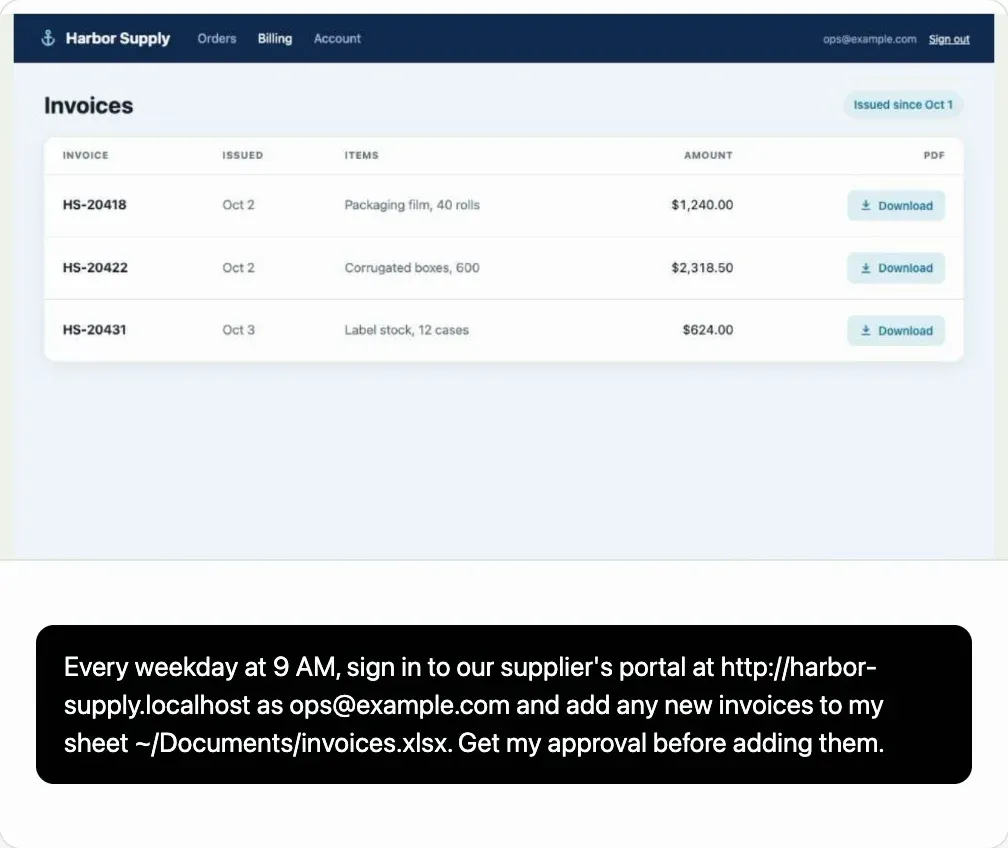
Every weekday at 9:00, sign in to [the supplier portal’s address] as [your sign-in email] and add any new invoices to my sheet [the workbook’s path].
-
Send it.
Name the site, the file, and the time. Leave the password out: the assistant asks for it in a card of its own.
Watch it work
Section titled “Watch it work”The assistant looks before it writes, and asks for what it needs in cards:
- Allow lets it open the site in Kitewell’s browser, shown at the top of the chat. Take over lets you click and type there yourself, for a step only you can do.
- A password goes into a card that saves it as a secret. The assistant never sees it.
- Questions it cannot answer by looking come as a short form.
Check it, then apply
Section titled “Check it, then apply”The assistant proposes the workflow as a card, with its steps in order and when it runs. Read it, then choose Apply. Nothing is saved, and nothing runs, until you do.
What the assistant did in its browser comes with the workflow. Its clicks are recorded, so the first run repeats them instead of working them out again.
Run it
Section titled “Run it”Ask the chat to run it now, or open the workflow and choose Run now. Then open Runs & logs and choose View run.
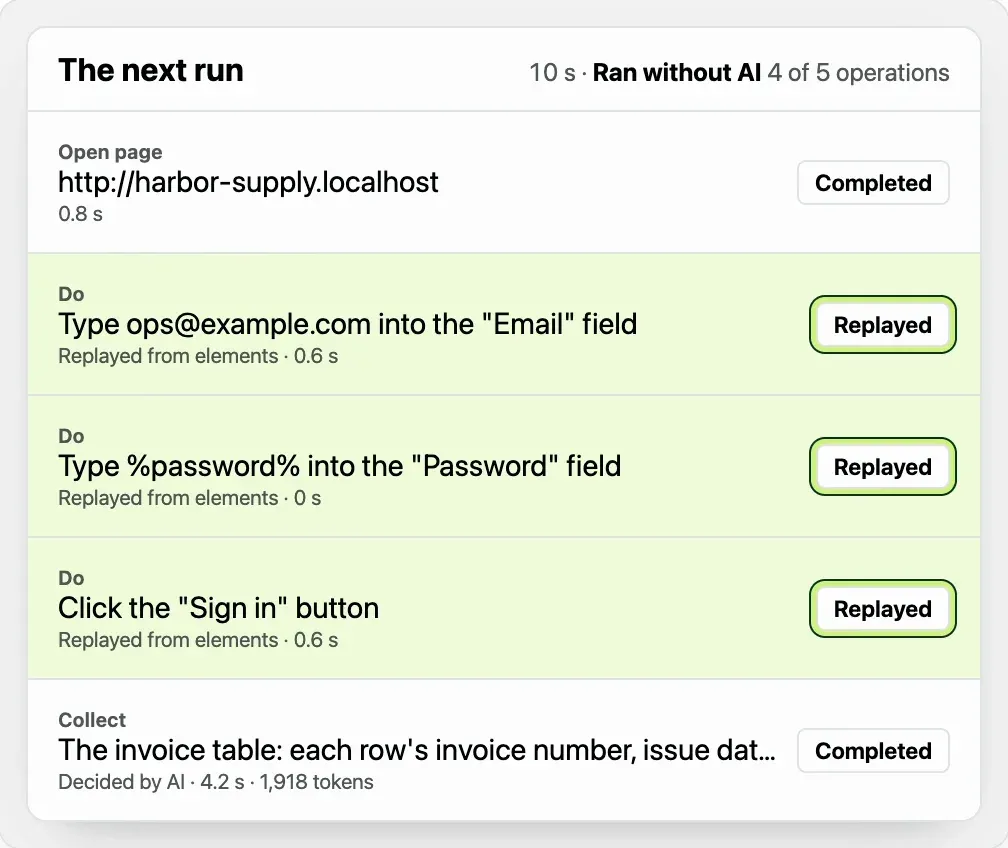
Select the browser step to see each operation the browser took:
- Replayed: a recorded click or keystroke, repeated without AI.
- Recovered: the page had changed, so AI found the new way and kept it for the next run.
- Reading values from a page, such as the new invoices, asks AI on every run.
The step’s Ran without AI counts the operations that needed no model.
On a schedule
Section titled “On a schedule”A request that says when, such as every weekday at 9:00, comes with its schedule. Kitewell runs the workflow at that time. Closing the window is fine; it keeps going in the menu bar or the tray. Read Scheduling before you rely on unattended runs.
If something goes wrong
Section titled “If something goes wrong”- The run failed. Open it from Runs & logs. The summary at the top names the step that failed and offers Inspect failure, which shows that step’s log.
- The workflow does not match the site. Say in the chat what is different; the assistant changes the workflow and proposes it again.
Without AI
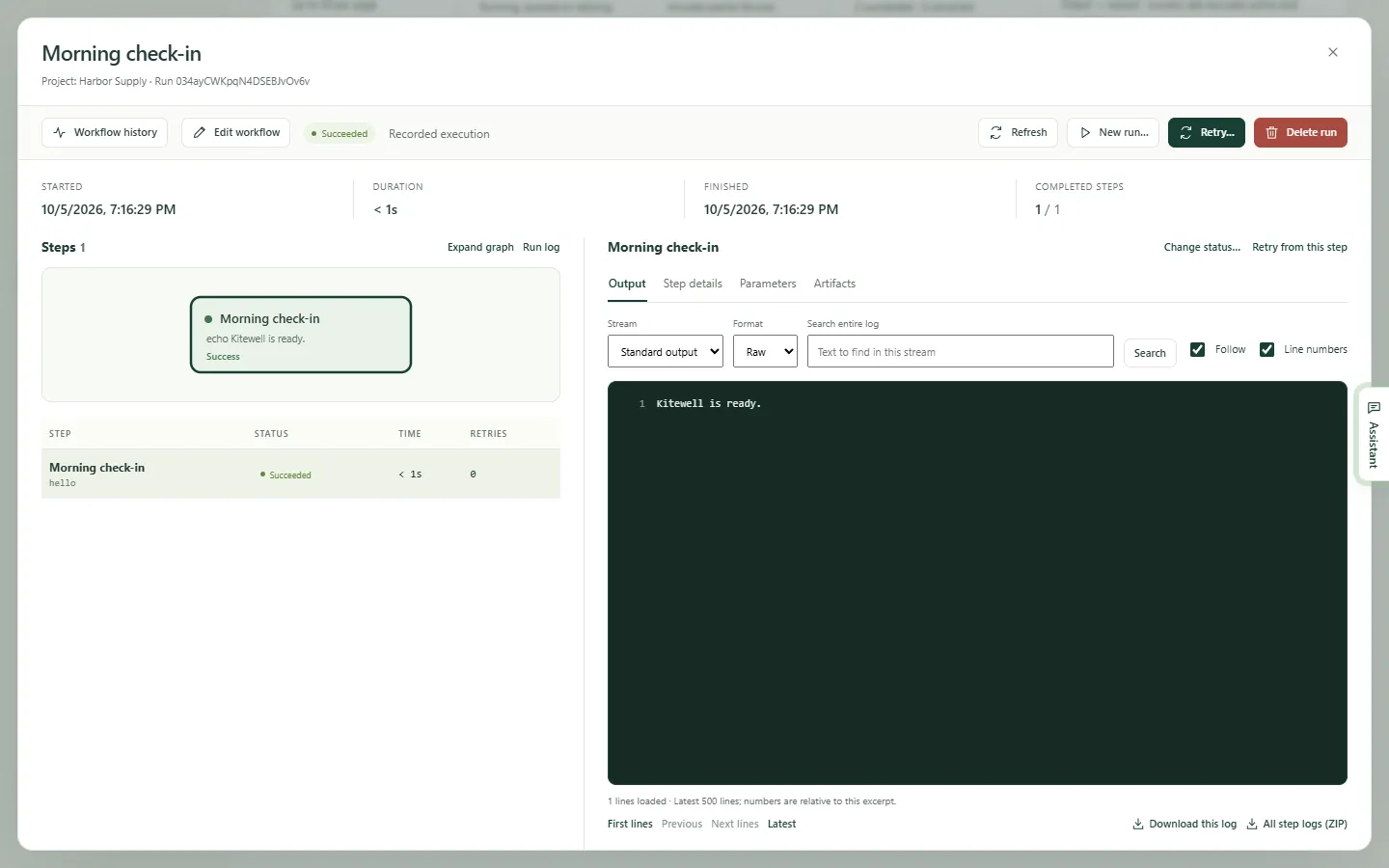
Section titled “Without AI”A workflow can also be built by hand, one step at a time. The smallest is a single command:
-
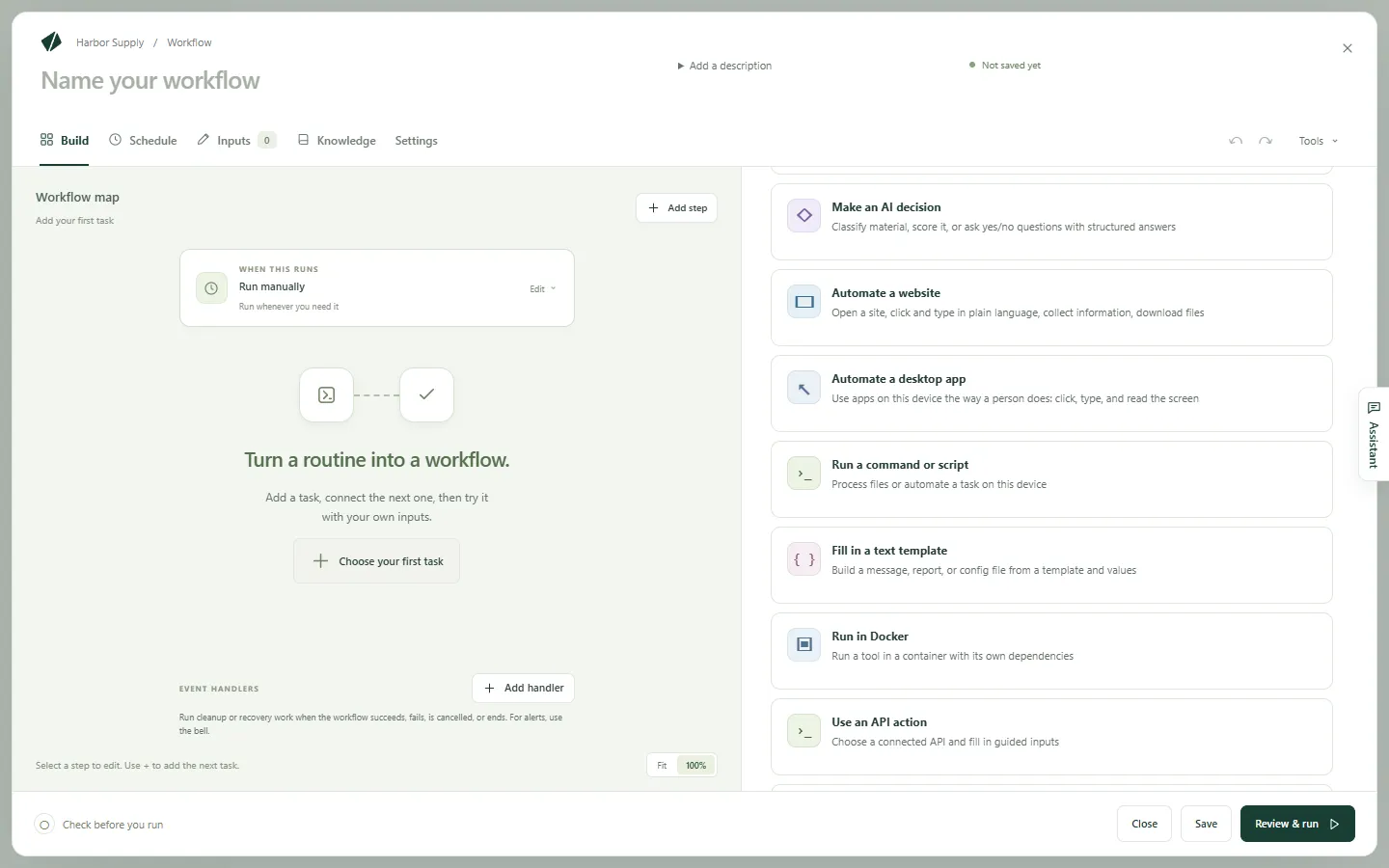
Choose Create a workflow, and type
Morning check-ininto Workflow name. -
Choose Choose your first task, then Run a command or script.
-
In Command, type
echo "Kitewell is ready."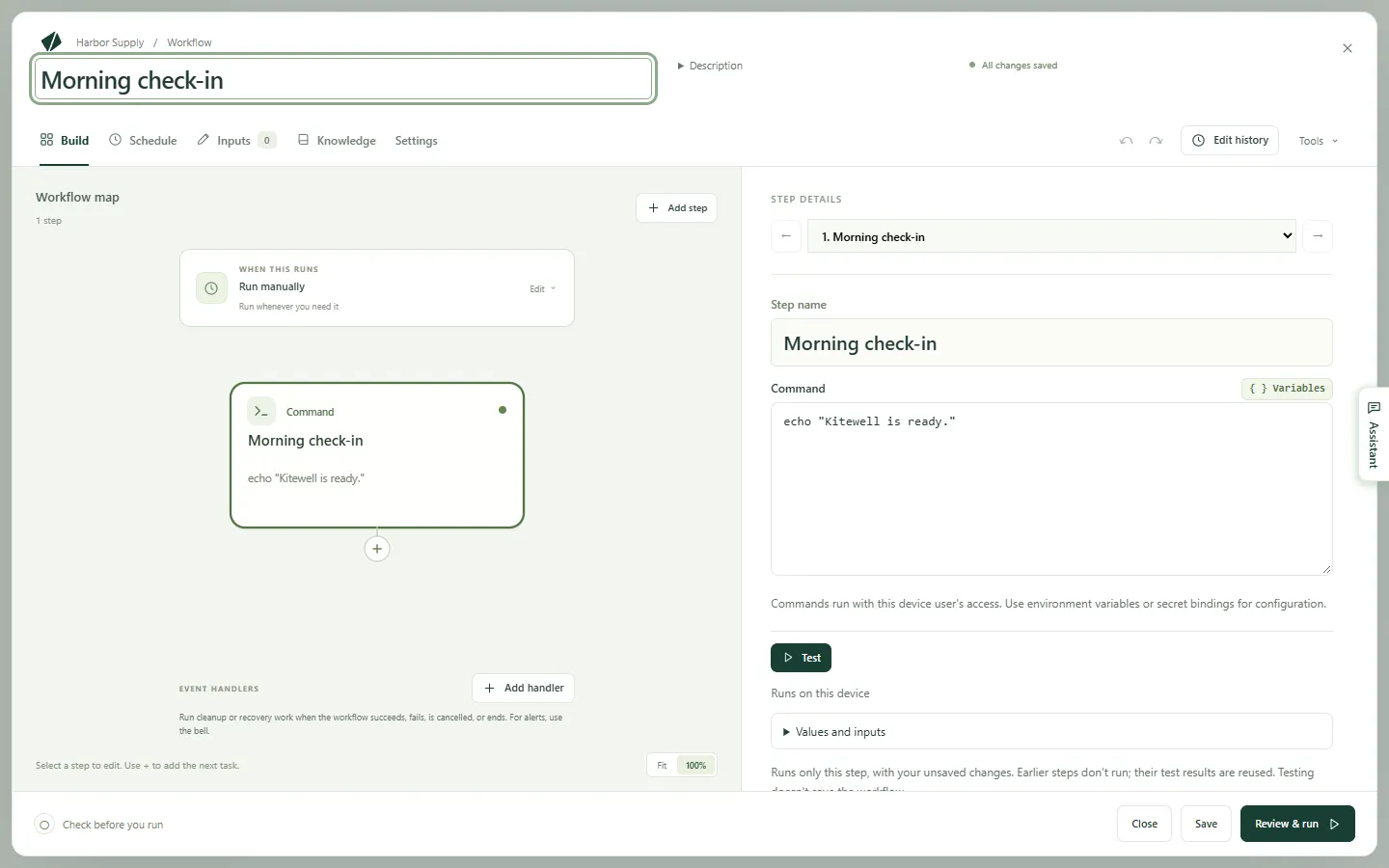
-
Choose Review & run, then Save and run…, then Start run.
The finished run shows the line in its output.
Build a workflow covers every kind of step.
Details
Section titled “Details”- Commands run with the permissions of the user account running Kitewell.
echo "…"is one of the few commands that behaves the same in PowerShell on Windows and in a shell on a Mac. A command written for one system does not always run on the other.
Kitewell is developed and supplied by Descarty, Inc. (Tokyo).