Secrets
A workflow often needs a password, an API token, or a key. Store it once as a
secret — a credential Kitewell keeps for you — and the workflow reads it by
name. Nobody has to type it again, it never appears in a workflow definition,
and logs show ******* where the value would be.
What you need
Section titled “What you need”- A project you can edit. Secrets is under More in the sidebar. In a project shared with you to view through Dagu Cloud, you can set this device’s values but not create a secret.
- The project running. While it is paused, the page says This project is paused; choose Resume.
Store a credential
Section titled “Store a credential”- Open More → Secrets and choose Create secret.
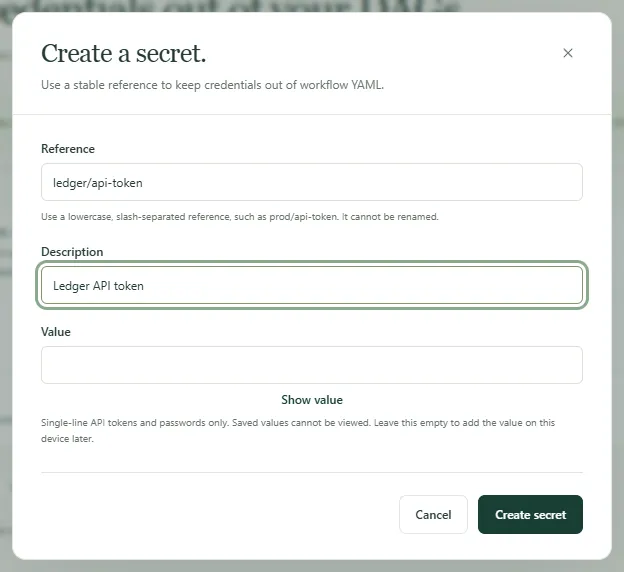
- Type a Reference — the name the workflow will use, such as
services/api-token. Use lowercase letters, digits, and hyphens, in parts separated by slashes. The reference cannot be renamed later. - Add a Description so the next person knows what it opens.
- Type the credential into Value. Show value lets you check what you pasted. Leave it empty to add the value on this device later.
- Choose Create secret.
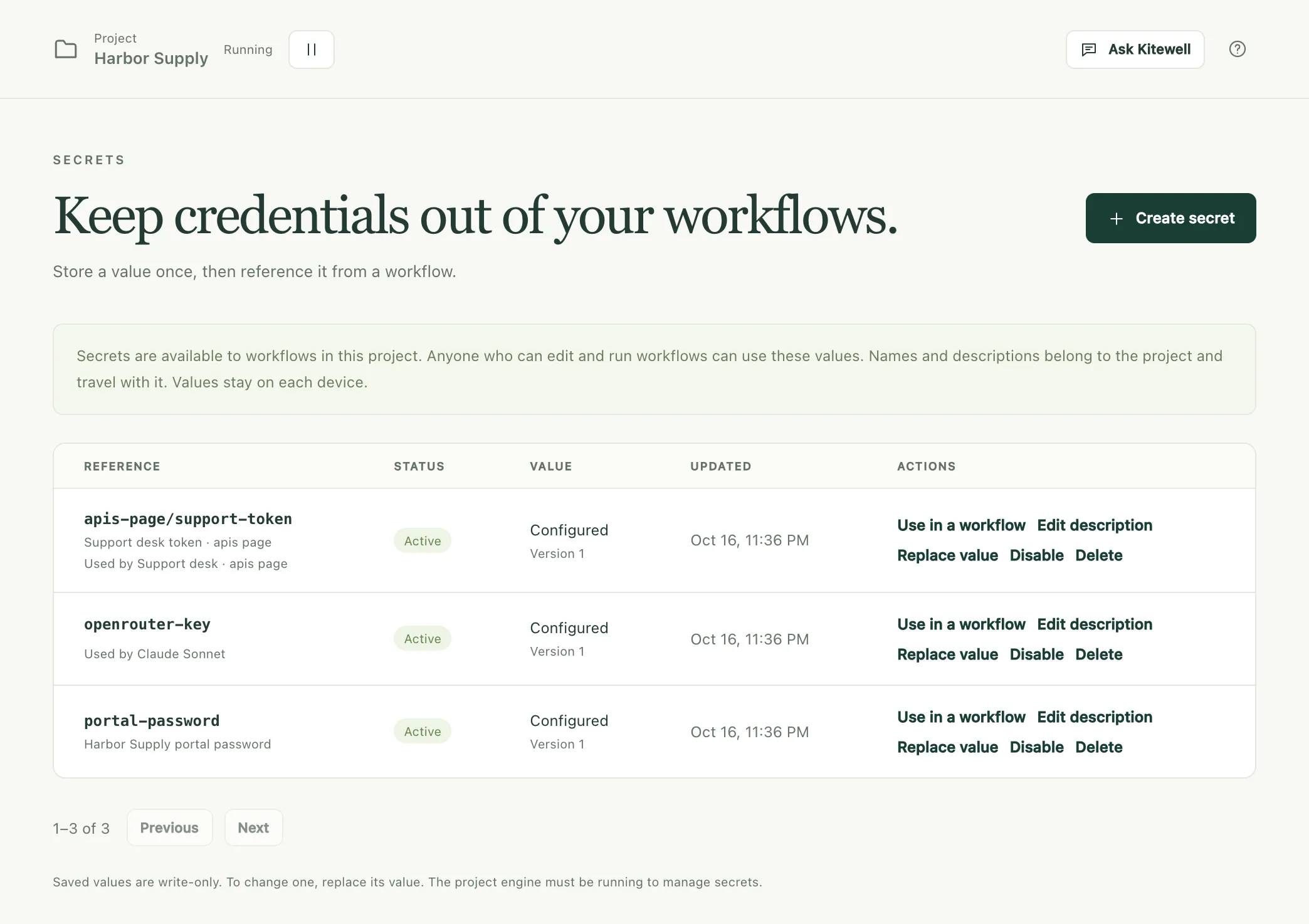
The secret appears in the list as Active, its value Configured, with Version 1. The value itself is never shown again, here or anywhere else.
Use it in a workflow
Section titled “Use it in a workflow”In the workflow editor, type ${ in a step’s field and choose the secret
under Secrets. Kitewell binds it to the workflow and puts its name in the
field; the value stays out.
Three other pages take a secret by name instead of a value:
- A model’s API key, under Agents & models.
- A server’s or jump host’s password, under Servers.
- An imported API’s credential or client secret, under API library.
To write the YAML yourself, choose Use in a workflow on the secret’s row.
Kitewell shows a secrets: block to paste at the top level. It names the
environment variable the steps read the value from, such as
SECRET_API_TOKEN for services/api-token.
In a website step or a desktop step,
choose the secret under Values the browser types or
Values the step types. The instructions and the model see only the value’s
name, written as %name%; the step types the value itself.
The assistant can ask for one as it builds a workflow. A card appears asking to add a secret by that name; you type the credential into Value and choose Save, and the assistant never sees what you typed.
When a device has no value yet
Section titled “When a device has no value yet”A secret’s name and description belong to the project. Its value belongs to the device you typed it on. A project that arrives by import or by sync brings the names and needs the values.
- Value needed marks a secret the project uses with no value here. Choose Set value.
- Overview lists every secret this device still needs, with Set value beside each.
- Only on this device marks a secret this device holds that the project does not list. Choose Declare to add it to the project.
- A line beginning Used by names what needs each secret — a model, a workflow, a server, or an API — so you can tell which credential to go and find.
Until a value is set, Kitewell refuses the work rather than failing it halfway. A run started by hand, by a webhook, by an AI agent, or by the assistant stops before it starts, with “Set a value for … on the Secrets page, then run again.” So do retrying, rerunning, or continuing a run, starting a batch, refreshing a sheet’s rows, and testing one step. A sheet’s schedule starts nothing at that time and says why. A workflow’s own schedule is not refused: its run starts and fails.
Change or remove one
Section titled “Change or remove one”- Replace value stores a new credential under the same reference. The Version number goes up, and nothing that uses the secret has to be edited.
- Edit description changes the description and nothing else.
- Disable stops the secret being read; the value stays. A run that needs it starts and fails. Enable puts it back.
- Delete removes the secret from the project and its value from this device. Other devices that sync the project lose the name. A device that held a value keeps it, listed as Only on this device, until it is deleted there too. A reference something still uses stays listed with Used by, and needs another secret.
If something goes wrong
Section titled “If something goes wrong”- “Set a value for … on the Secrets page, then run again.” This device has no value for that secret. Open Secrets, choose Set value, and run again.
- “This project is paused”. Choose Resume, then try again.
- A value on more than one line is refused. Only single-line tokens and passwords are supported. A key that spans lines has to reach the step another way, such as a file the step reads.
- “already has a value on this device”. Creating a secret never writes over a stored value. Use Replace value instead.
What this protects, and what it does not
Section titled “What this protects, and what it does not”Secrets are encrypted on disk by the project’s engine. The key that deciphers them is itself sealed under a device key that the operating system holds: on Windows, a key only this PC can open, so a copy of the data folder reads as nothing elsewhere. While a run lasts, every step in it receives the secrets its workflow binds.
It is not a sandbox. Anyone who can edit and run this project’s workflows can write a step that reads its secrets, and a step runs with the permissions of the person running Kitewell. Separate projects separate secrets; they do not limit what a command can do.
Kitewell shows ******* in place of a secret’s exact value in logs, run
details, and outputs. A value a step encodes, trims, or transforms before
printing may not be masked, and neither is one a step writes to a file or an
artifact. Do not print credentials.
Exports, sync, releases, and backups
Section titled “Exports, sync, releases, and backups”| Where the project goes | Names and descriptions | Values |
|---|---|---|
| A project export | Included, references and all | Left out |
| Dagu Cloud sync | Synced with the project | Never sent |
| A release | Those its workflows read | Left out |
| A device backup | Included | Left out, with their keys |
Everyone who receives the project sees each secret as Value needed and sets their own value.
Restoring a backup removes the values this device holds, even on the device that made the backup. Enter the credentials again: the restore names up to five for each project, and Secrets and Overview list every one still needed. Keep a separate, protected record of the credentials you would need to recover.
If Dagu Cloud does not accept a new secret for the project, the value is still saved on this device, listed as Only on this device. Others who sync the project do not see it until it is declared, unless something synced already uses that name.
Exports and backups are not encrypted. A credential typed straight into a workflow, an OpenAPI file, or a source URL stays in the archive as written. Review an archive before sharing it, and encrypt it yourself before putting it in shared storage.
Details
Section titled “Details”- A reference matches
^[a-z0-9][a-z0-9-]*(/[a-z0-9][a-z0-9-]*)*$and is at most 80 characters. A description is one line of at most 200 characters. - Values are single-line only, because the engine’s log masker works a line at a time.
- The store is Dagu’s AES-256-GCM secret registry under
engines/<project>/data/secrets. Its key is kept sealed inengines/<project>/key.sealedunder the device key,device.key, which Windows seals for this PC alone; on a Mac the device key is a file only your user can read. None of them is in a backup. - A device key is renewed once a year, and everything sealed under it is resealed; Device settings → Stored secrets shows when, and offers Make a new key now. If the key is ever lost, as after a Windows reinstall, the same section says so and every stored value asks to be entered again. Workflows and their data are untouched.
- The engine reads a run’s secrets when the run starts and gives them to its steps as environment variables. Kitewell reads a value itself only to use it for you: a model’s key for the assistant or a sheet, an API’s client secret when you connect the API, a value the assistant’s browser types, and the values it hides from what the assistant’s trial runs report.
- The list shows 50 secrets a page, with Previous and Next.
- Sign-ins to container registries, mailboxes, and APIs are kept as engine-internal values and are not listed here. Manage them under Project settings, Mail accounts, and API library.
Kitewell is developed and supplied by Descarty, Inc. (Tokyo).